As your business evolves, you'll need to update project settings or remove outdated projects. This guide covers editing and deleting projects safely and effectively.
Editing Project Information
What You Can Edit
Most project settings can be modified after creation:
- Project name and description
- Brand information
- Website URLs
- Target audience
- Competitive landscape
- Analysis defaults
What You Cannot Edit
Some elements are fixed after creation:
- Project ID (internal identifier)
- Creation date
- Organization ownership
If you need to change these, create a new project instead.
Updating Basic Details
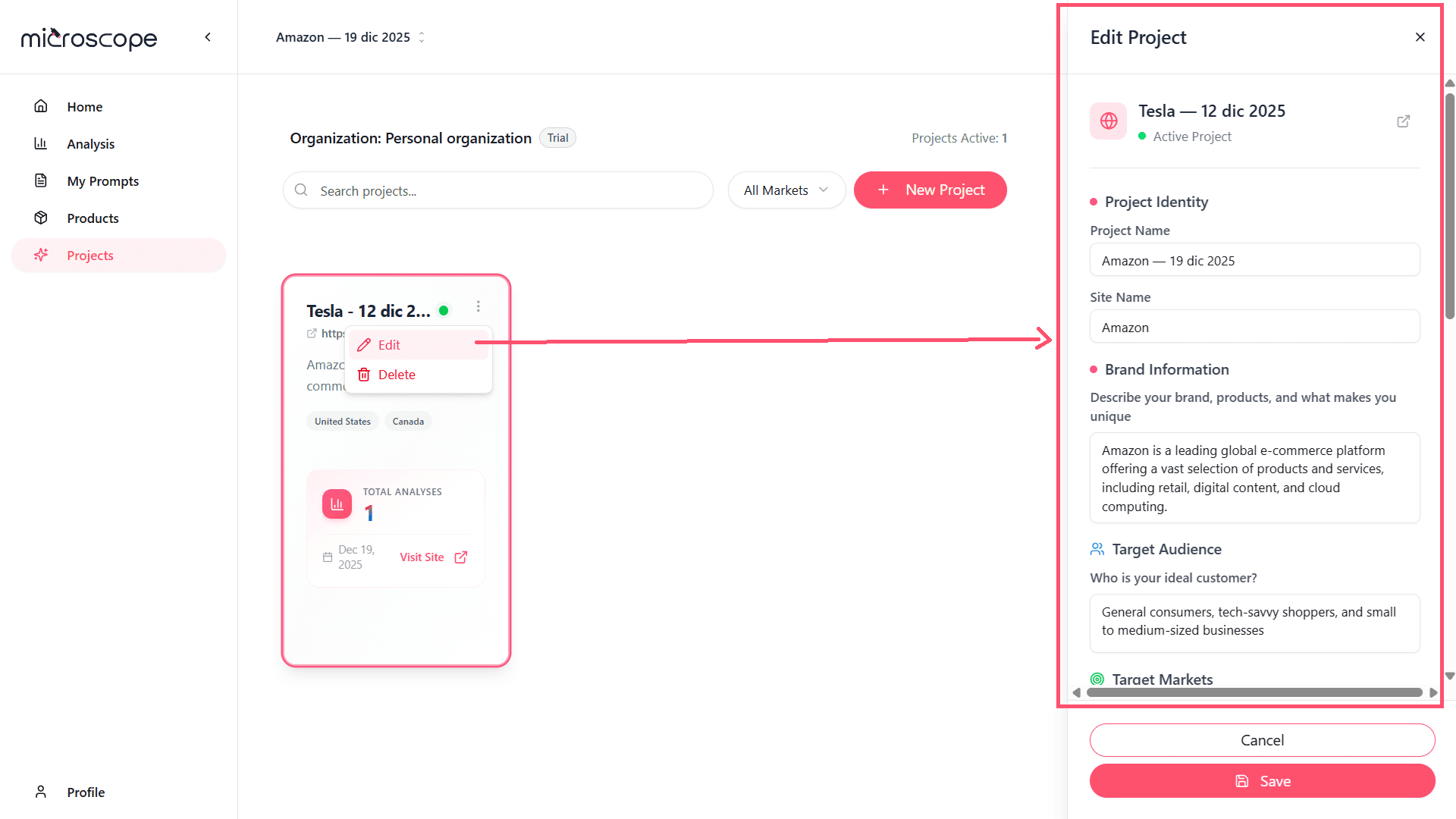
- Navigate to the Projects page
- Find the project you want to edit
- Click on Three-Dot menu
- Click Edit option
- Navigate to Basic Information
- Edit the fields you want to change
- Click Save button
Changes take effect immediately.
Impact of Editing Projects
What Changes Affect
Most setting changes impact:
- Future analyses - New executions use updated settings
- Automatic prompts - May be regenerated for industry changes
- Dashboard display - Reflects new project name and details
What Remains Unchanged
- Historical data - Past analysis results are preserved
- Analysis history - Records of previous executions remain
- Trends - Historical trends continue unbroken
Best Practices for Editing
- Document changes - Keep notes on significant updates
- Test after editing - Run a quick analysis to verify
- Inform team - Let collaborators know about major changes
- Edit incrementally - Don't change everything at once
Deleting Projects
Who Can Delete Projects
Currently, all team members have the ability to delete projects. Be careful and coordinate with your team before deleting.
When to Delete a Project
Consider deletion when:
- The project is no longer relevant
- The project was created for testing
- The brand no longer exists
- Consolidating multiple projects
Alternatives to Deletion
Before deleting, consider:
- Archiving - Mark as inactive without deleting
- Renaming - Repurpose for a new brand or market
- Pausing - Stop analyses without deleting
Deletion Process
- Navigate to Projects page
- Find the project to delete
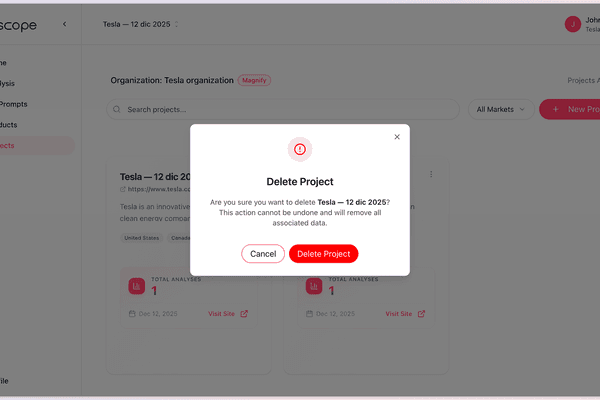
- Click Three-Dot Menu
- Click Delete option
- Read the warning carefully
- Click Delete Project button
Project deletion is permanent and cannot be undone. All data, analyses, results, and configuration will be lost forever.
What Gets Deleted
Deleting a project removes:
- All project configuration
- All products in the catalog
- All custom prompts
- All analyses and executions
- All historical results and data
- All scheduled analyses
What Is Not Deleted
Deletion does not affect:
- Other projects in the organization
- Organization settings
- User accounts
- Billing information
- Other teams or projects
Recovering Deleted Projects
There is no recovery option. Deleted projects are gone permanently.
Common Issues
Can't Edit Project
- Refresh the page
- Try a different browser
- Check your internet connection
Can't Delete Project
- Cancel any running analyses first
- Check organization policies
- Contact support if blocked
Accidental Deletion
If you delete a project by mistake:
- There is no undo function
- Contact support immediately
Next Steps
Now that you understand project management:
- Configure your project completely
- Set up products and analyses
- Establish a review schedule
- Train team members on project management