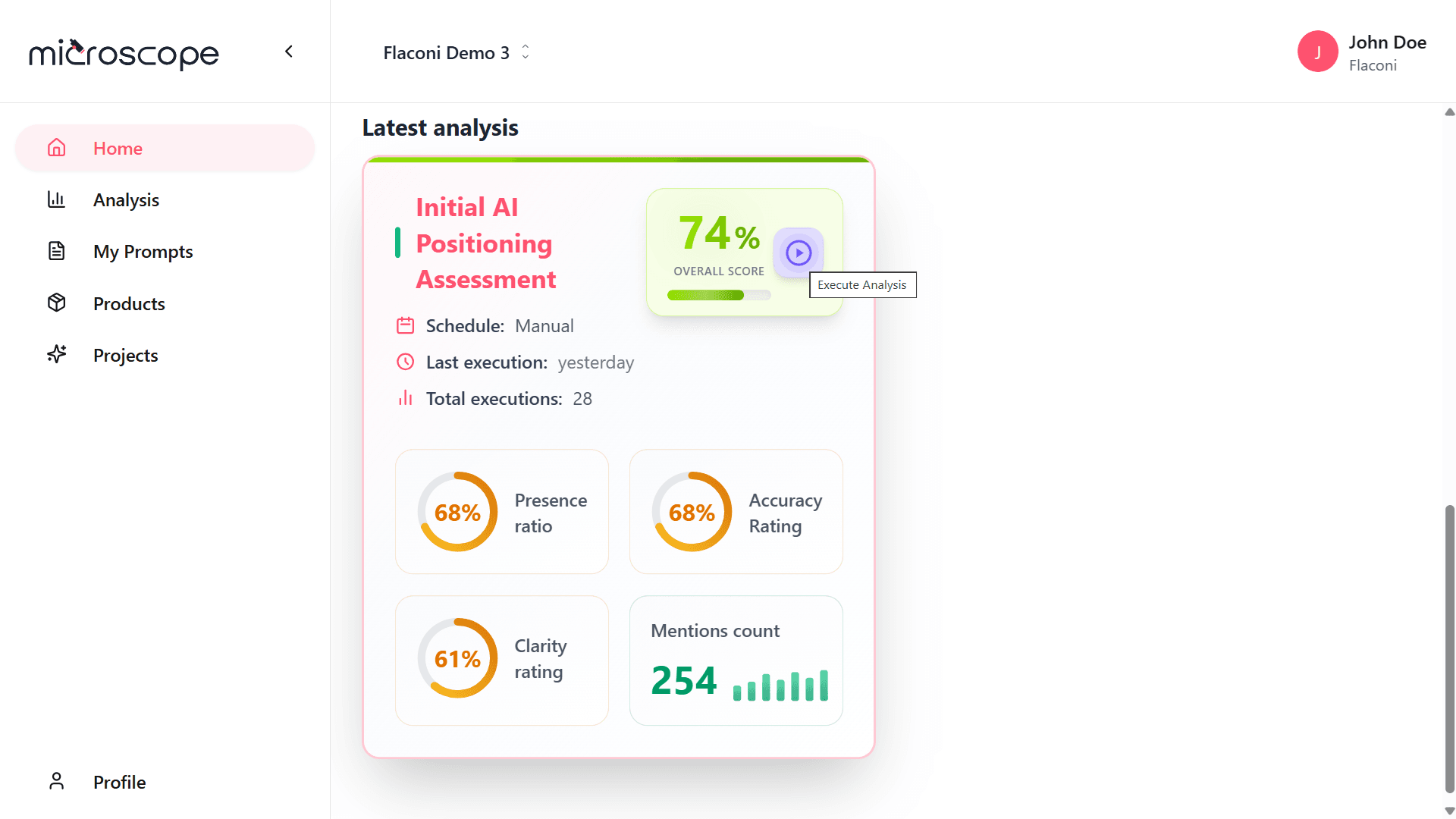
The Home dashboard is your central command center in Microscope.ai, providing an at-a-glance view of your project's AI presence performance. This guide explains how to navigate and interpret the Home dashboard effectively.

Accessing the Home Dashboard
- Log in to Microscope.ai
- Select your project (if you have multiple)
- You'll land on the Home dashboard
- Or click Home in the left sidebar anytime
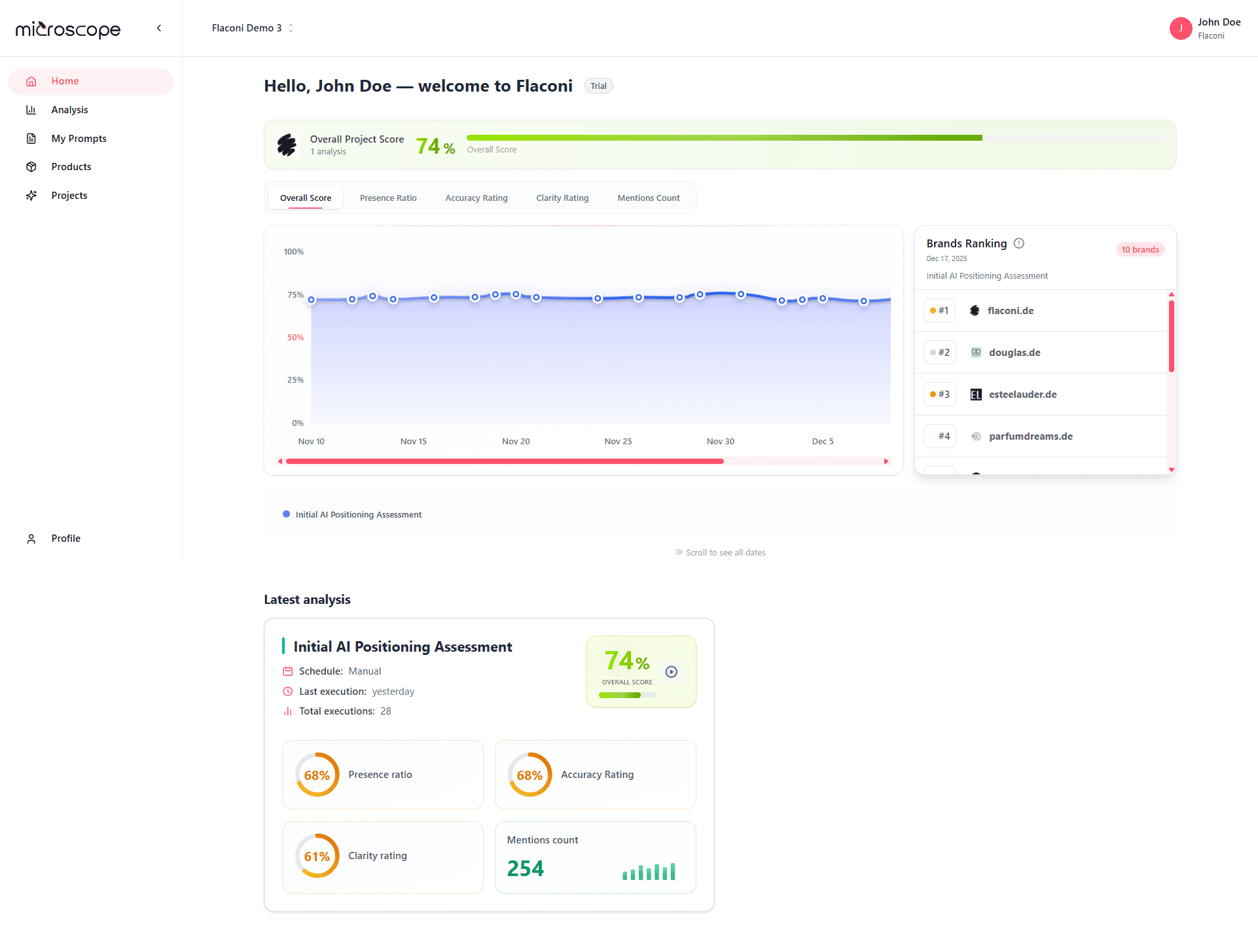
Dashboard Overview
The Home dashboard aggregates data from your most recent analysis execution, showing:
- Overall project performance
- Key metrics at a glance
- Trend indicators
- Category breakdown
- Recent activity
- Quick action buttons
The Home dashboard shows data from the active project. Switch projects to see different data.
Key Dashboard Sections
Overall Performance Card
What It Shows
- Your current overall score
- Trend indicator (up, down, or stable)
- Percentage change from previous execution
- Date of last analysis
Quick Interpretation
- Green with up arrow - Performance improving
- Red with down arrow - Performance declining
- Gray/flat - Stable performance
- Click for detailed analysis results
Key Metrics Summary
High-level performance indicators:
Mention Rate
- Percentage of prompts where you're mentioned
- Displayed as large percentage
- Trend indicator shows change
- Quick health check on visibility
Average Position
- Your average ranking in AI responses
- Lower is better (1 = best)
- Shows competitive positioning
- Trend shows if improving or declining
Accuracy Rate
- Percentage of accurate mentions
- Critical quality metric
- Should trend toward 95%+
- Red flag if declining
Sentiment Score
- How favorably you're portrayed
- Percentage positive
- Reputation indicator
- Monitor for negative shifts
Category Performance
Breakdown by prompt category:
- Brand - Brand awareness and positioning
- Product - Product recommendation performance
- Technical - Technical accuracy
- Trust - Credibility and reputation
Visual Elements
- Bar chart or gauge for each category
- Color-coded (green/yellow/red)
- Percentage scores visible
- Click to drill into category details
Reading Category Performance
- Identify strongest categories (leverage)
- Spot weakest categories (improve)
- See category trends
- Balance optimization efforts
Model Comparison
Performance across AI models:
- GPT score
- Gemini score
- Claude score
- Perplexity score
What to Look For
- Which models perform best
- Significant model differences
- Consistent vs. variable performance
- Model-specific optimization needs
Recent Activity
Timeline of recent actions:
- Latest analysis executions
- Recent optimizations or changes
- Scheduled upcoming analyses
- Team member activity
Use Cases
- See what's been happening
- Track execution history
- Monitor team collaboration
- Verify scheduled analyses
Trend Graphs
Visual representation of performance over time:
- Overall score trend line
- Key metric trends
- Category trends
- Timeframe selector (week, month, quarter)
Reading Trends
- Upward slope - Improving performance
- Downward slope - Declining performance
- Flat line - Stable performance
- Volatility - Inconsistent performance
Quick Actions
Convenient buttons for common tasks:
Run Analysis
- Execute your project's analysis immediately
- Quick way to get fresh data
- Check execution quota before running
View Latest Results
- Jump to most recent analysis results
- Shortcut to detailed view
- See full dashboard and table
Create Analysis
- Start new analysis configuration
- Useful for testing variations
- Configure different prompt sets
Manage Prompts
- Quick access to prompts library
- Add custom prompts
- Review and edit prompts
Export Report
- Generate executive summary
- Download dashboard data
- Share with stakeholders
Dashboard Customization
Time Range Selection
- Change trend timeframe
- View last week, month, quarter, or year
- Compare different periods
- Reset to default
Metric Display
Some plans allow customizing:
- Which metrics to show
- Order of dashboard cards
- Chart types (line, bar, gauge)
- Color thresholds
Notifications and Alerts
- Set up dashboard alerts
- Notify on significant changes
- Threshold-based warnings
- Daily/weekly digest emails
Reading Dashboard Strategically
Daily Quick Check
For daily monitoring:
- Glance at overall score
- Check trend arrows
- Look for red flags
- Review recent activity
- Takes less than 30 seconds
Weekly Review
For weekly assessment:
- Review all key metrics
- Analyze category performance
- Check trend graphs
- Compare to previous week
- Identify action items
- Takes 5-10 minutes
Monthly Deep Dive
For comprehensive review:
- Study month-long trends
- Compare to monthly goals
- Review all categories in detail
- Assess optimization effectiveness
- Plan next month's strategy
- Takes 30-60 minutes
Common Dashboard Patterns
Healthy Dashboard
- Overall score 75%+
- Upward or stable trends
- Balanced category performance
- High accuracy rate (90%+)
- Consistent across models
Action: Maintain current strategy, look for incremental improvements.
Improving Dashboard
- Upward trends visible
- Recent optimizations showing impact
- Some categories improving faster
- Growing mention rates
Action: Continue optimization efforts, document what's working.
Declining Dashboard
- Downward trends
- Falling scores
- Declining mention rates
- Increasing inaccuracies
Action: Investigate causes, urgent optimization needed.
Mixed Dashboard
- Some categories up, others down
- Inconsistent model performance
- Variable trends
Action: Focus optimization on weak areas, maintain strong areas.
Dashboard Alerts and Warnings
Red Flags to Watch
- Sudden score drops - Investigate immediately
- Declining accuracy - Content issues
- Falling mention rates - Visibility problems
- Negative sentiment increase - Reputation concerns
- Large model discrepancies - Inconsistent presence
Warning Indicators
Dashboard may show warnings for:
- Execution failures
- Quota approaching limit
- Outdated data (analysis not run recently)
- Configuration issues
- Missing critical information
Multi-Project Dashboards
Switching Projects
- Use project selector/dropdown
- Dashboard updates to show selected project
- Each project has independent data
- Bookmarks for quick switching
Comparing Projects
Some plans offer cross-project views:
- See all projects side-by-side
- Compare performance across projects
- Portfolio-level insights
- Consolidated reporting
Mobile and Responsive Views
Mobile Dashboard
- Optimized for smaller screens
- Key metrics prioritized
- Swipe for additional views
- Push notifications for changes
Tablet View
- Hybrid layout
- More detail than mobile
- Touch-optimized interactions
- Good for presentations
Integrating Dashboard into Workflow
Daily Routine
- Morning dashboard check
- Quick scan for issues
- Note any significant changes
- Plan day's optimization work
Weekly Team Meeting
- Share dashboard in meeting
- Review week's performance
- Discuss trends
- Assign action items
- Celebrate improvements
Executive Reporting
- Export dashboard view
- Highlight key metrics
- Show month-over-month progress
- Include interpretation and next steps
Dashboard Best Practices
- Check regularly - Daily quick glances, weekly deep reviews
- Understand baselines - Know what's normal for your project
- Don't overreact - Single-day changes aren't trends
- Look for patterns - Focus on sustained trends
- Combine with details - Dashboard shows what, details show why
- Share with team - Keep everyone informed
- Set goals - Use dashboard to track progress toward targets
- Document changes - Note what you changed to correlate with results
Common Dashboard Misinterpretations
Myth: Dashboard Shows Real-Time Data
Reality: Dashboard shows data from most recent analysis execution. Not live/real-time.
Myth: Green Dashboard Means No Work Needed
Reality: Even good performance can be optimized. Maintenance is ongoing.
Myth: One Bad Day Means Strategy Failed
Reality: Look at trends over weeks/months, not single executions.
Myth: Dashboard Is Only for Executives
Reality: Everyone on team should review dashboard regularly.
Troubleshooting Dashboard Issues
Dashboard Shows Old Data
- Check last execution date
- Run new analysis to refresh
- Verify scheduled analyses running
- Check execution history for failures
Metrics Don't Make Sense
- Verify project selection is correct
- Check if analysis configuration changed
- Review execution logs
- Contact support if data seems incorrect
Dashboard Won't Load
- Refresh browser
- Clear cache
- Check internet connection
- Try different browser
- Check system status page
Next Steps
Now that you understand the Home dashboard, you're ready to:
- Explore project-level analysis features
- Learn about exporting and reporting
- Set up custom views and alerts
- Master detailed analysis results