Custom prompts allow you to monitor specific scenarios, campaigns, or competitive dynamics unique to your business. This guide explains how to create effective custom prompts step by step.
When to Create Custom Prompts
Consider creating custom prompts when:
- Automatic prompts don't cover your specific use case
- You have unique competitive positioning
- You're running specific marketing campaigns
- You serve niche markets or audiences
- You want to test particular messaging
- Your industry has specialized terminology
Prerequisites
Before creating a custom prompt, have ready:
- Clear objective - What you want to measure
- Target category - Brand, Product, Technical, or Trust
- Realistic scenario - How a real user would ask
- Expected outcome - What a good AI response looks like
Step-by-Step: Creating a Custom Prompt
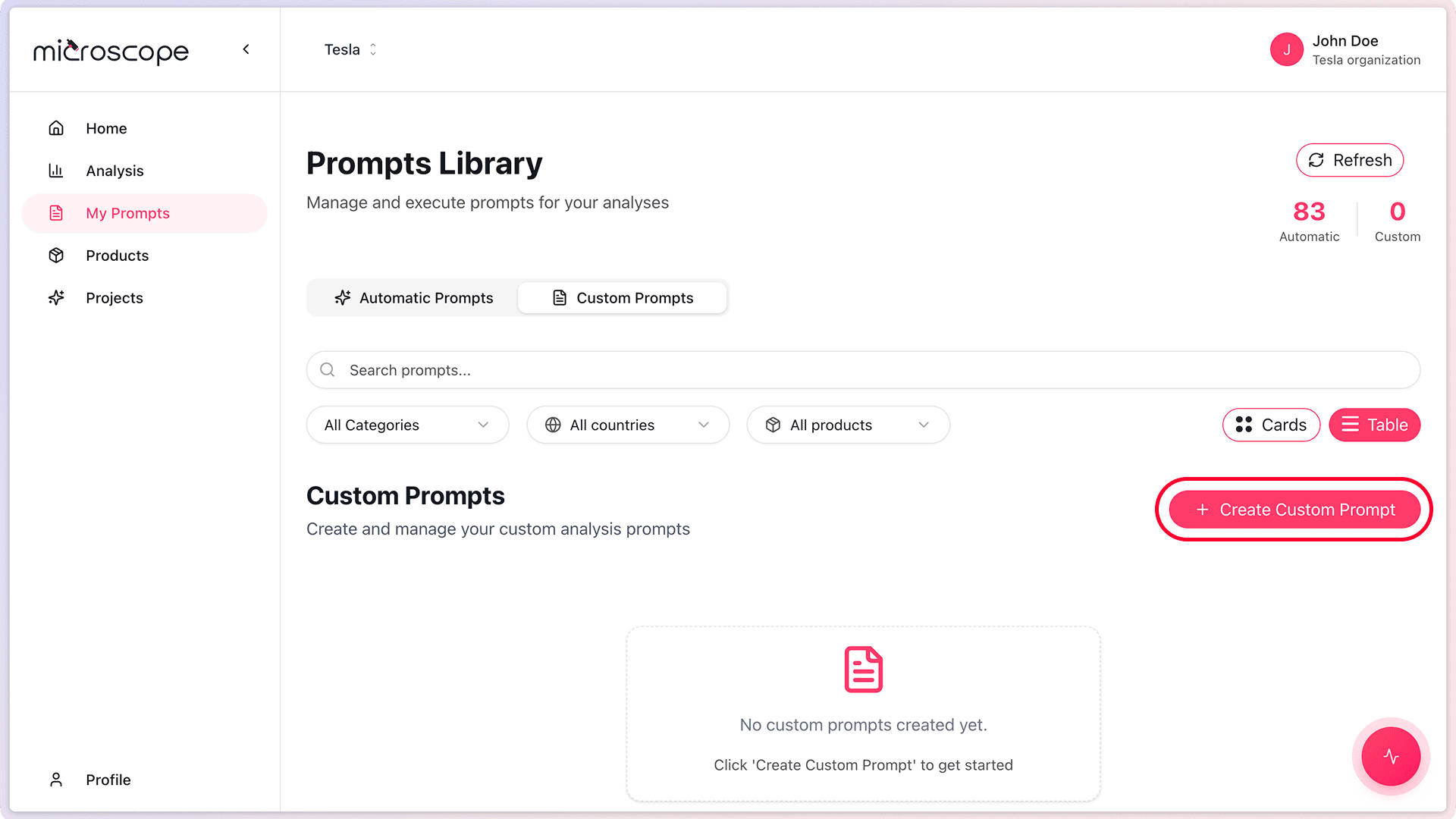
Step 1: Access Prompt Creation
- Navigate to Prompts Library
- Click the Custom Prompt tab
- Click the Create Custom Prompt button
- The custom prompt form will open
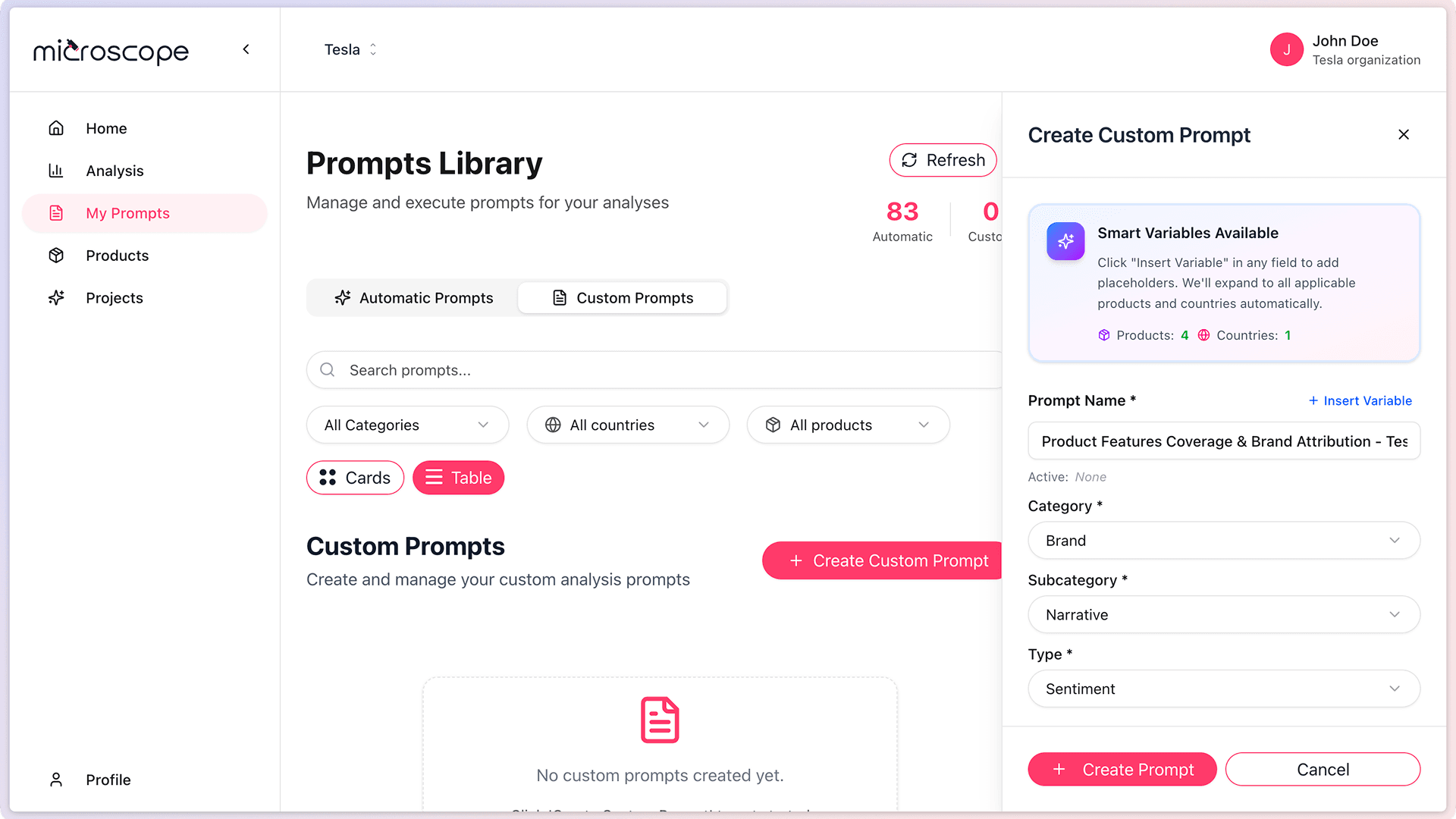
Step 2: Enter Basic Information
Fill in the required fields:
Prompt Name
- Give your prompt a descriptive name
- Use clear, specific names
- Include the category or purpose
- Example: "Brand Comparison - Healthcare"
Select Category
Choose the most appropriate category:
- Brand - For brand awareness, reputation, positioning
- Product - For product recommendations and comparisons
- Technical - For technical specifications and implementation
- Trust - For credibility, reviews, reliability
Select Subcategory
Choose the most appropriate subcategory.
Select Type
Choose the most appropriate type.
Prompt Text
- Write the actual question or statement
- Use natural language
- Be specific and clear
- Simulate a real user query
- Example: "Which telehealth platform is best for small medical practices?"
Step 3: Save the Prompt
- Click Create Prompt button
- The prompt is added to your library
- It's immediately available for use in analyses
Best Practices for Writing Prompts
Be Specific and Clear
Good prompts are unambiguous:
- Bad: "Tell me about CRM"
- Good: "What CRM software is best for e-commerce businesses with under 50 employees?"
Use Natural Language
Write like a real user:
- Bad: "CRM features list"
- Good: "What features should I look for in a CRM system?"
Include Context When Relevant
Add scenario details:
- Basic: "Best running shoes?"
- Better: "What are the best running shoes for marathon training on pavement?"
Avoid Leading Questions
Don't bias the AI:
- Bad: "Why is [Your Brand] the best choice?"
- Good: "What are the best options for [use case]?"
Keep It Realistic
Simulate real search behavior:
- Use common phrasing
- Avoid overly complex questions
- Match how users actually ask
- Test variations of common queries
Prompt Templates by Category
Brand Category Templates
- "What is [Brand Name] known for?"
- "How does [Your Brand] compare to [Competitor]?"
- "Is [Brand Name] a good choice for [use case]?"
- "What do people say about [Brand Name]?"
Product Category Templates
- "What are the best [product type] for [use case]?"
- "Compare [Your Product] to [Competitor Product]"
- "Where can I buy [Product Name]?"
- "What are the main differences between [Product A] and [Product B]?"
Technical Category Templates
- "What are the system requirements for [Product]?"
- "How do I integrate [Product] with [System]?"
- "Does [Product] support [Feature/Technology]?"
- "What programming languages work with [Product]?"
Trust Category Templates
- "Is [Brand/Product] reliable?"
- "What are the reviews for [Product]?"
- "What certifications does [Brand] have?"
- "How is [Brand]'s customer service?"
Common Mistakes to Avoid
- Too broad - "Tell me about software" is too generic
- Too narrow - "CRM for 47-employee SaaS in Berlin" is too specific
- Duplicate content - Creating prompts similar to existing ones
- Biased phrasing - Leading the AI to a desired answer
- Complex multi-part questions - Keep it to one clear question
- Jargon or acronyms - Unless industry-standard
Testing and Refining Custom Prompts
Initial Testing
After creating a custom prompt:
- Include it in a test analysis
- Execute with a few AI models
- Review the responses
- Assess if the prompt yields useful data
Refinement Criteria
Refine your prompt if:
- AI responses are too generic
- The question is misunderstood
- Results aren't actionable
- It overlaps with other prompts
- The phrasing feels unnatural
Iterative Improvement
- Edit the prompt based on results
- Test the revised version
- Compare old vs. new responses
- Keep refining until optimal
Managing Custom Prompts
Editing Custom Prompts
- Go to Prompts Library
- Find your custom prompt
- Click View Details button
- Modify the Prompt Name or Prompt Text
- Click Edit Prompt button
- Make changes and save
What Can Be Edited
- ✅ Prompt Name - Change the title for clarity
- ✅ Prompt Text - Refine the question or scenario
- ❌ Category, Subcategory, and Type - These cannot be changed (delete and recreate if needed)
ActiDeactivating/Deactivating Custom Prompts
- Navigate to Prompts Library
- Click the Custom Prompts tab
- Find the prompt you want to deactivate
- Click the Active /Desactive button
Important: Historical Data is Preserved
Note: Deactivating a prompt does not remove results from past analyses that used it. Your historical data remains intact and accessible.
Collaboration and Sharing
Team Visibility
- Custom prompts you create are visible to your team
- Team members can use your prompts in their analyses
- Currently, any team member can edit or delete any custom prompt (all users have full access)
Note: In a future release, prompt editing/deletion will be restricted to the creator and administrators.
Best Practices for Teams
- Name prompts clearly
- Add descriptions for context
- Coordinate to avoid duplication
- Share successful prompts
- Document the reasoning behind each prompt
Advanced Tips
- Test variations - Create multiple versions to see what works best
- Seasonal prompts - Create prompts for specific campaigns or seasons
- Competitive monitoring - Target specific competitor scenarios
- Audience segmentation - Create prompts for different personas
- A/B testing - Test different phrasing of the same question
Next Steps
Now that you know how to create custom prompts, you're ready to:
- Build your first analysis using custom prompts
- Learn about analysis configuration
- Execute analyses and review results
- Refine prompts based on performance