Your website configuration is crucial for Microscope.ai to verify information accuracy, check links, and assess how AI models direct users to your site. Proper website setup ensures comprehensive monitoring.
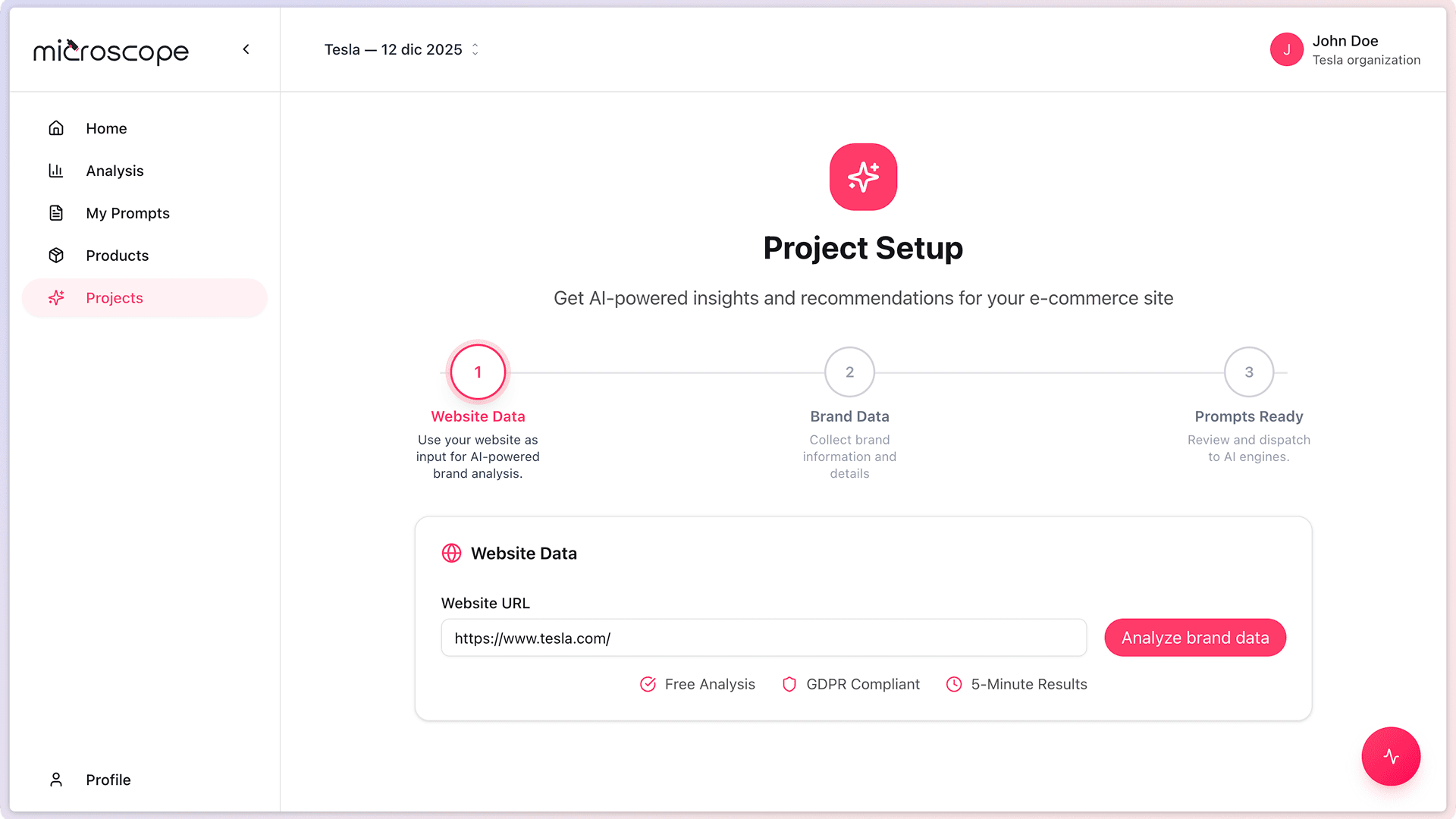
Primary Website URL
Your main website is the primary reference point for all analyses.
Entering Your URL
- Include the full protocol: https:// or http://
- Use your root domain (e.g., https://www.example.com)
- Avoid trailing slashes
- Verify the URL is accessible
- Use the most commonly promoted version (with or without www)
URL Variations
If your site is accessible via multiple URLs:
- www vs. non-www
- http vs. https
- Country-specific domains
Choose the canonical version - the one you want AI models to reference.
Additional Websites and URLs
When to Add Multiple URLs
- Subdomains for specific functions (blog.example.com, shop.example.com)
- Regional or language-specific sites
- Microsites for campaigns
- Legacy domains that redirect
- Social media profiles
Adding URLs
- Click Add Website or Add URL
- Enter the full URL
- Specify the purpose or type
- Save the entry
Website Verification
Verification proves you own the website and may unlock advanced features.
Verification Methods
- Meta tag - Add a verification tag to your site's HTML
- File upload - Upload a verification file to your web server
- DNS record - Add a TXT record to your domain's DNS
Meta Tag Verification
- Copy the verification meta tag from Microscope.ai
- Add it to the <head> section of your homepage
- Save and publish the changes
- Return to Microscope.ai and click Verify
File Upload Verification
- Download the verification file
- Upload it to your website root directory
- Ensure it's accessible at yourdomain.com/verification-file.html
- Click Verify in Microscope.ai
DNS Verification
- Copy the TXT record provided by Microscope.ai
- Access your domain registrar's DNS management
- Add a new TXT record
- Wait for DNS propagation (up to 48 hours)
- Click Verify in Microscope.ai
Website Properties
Site Language
Specify your primary language:
- Affects how AI responses are evaluated
- Influences prompt generation
- Helps with international monitoring
Site Type
- E-commerce store
- Corporate website
- Blog or content site
- SaaS application
- Portfolio or agency site
Technical SEO Settings
Robots.txt
Your robots.txt file status:
- Microscope.ai checks for accessibility
- Warns if crawling is blocked
- Verifies AI agent access
Sitemap
XML sitemap configuration:
- URL to your sitemap.xml
- Helps identify key pages
- Used for comprehensive monitoring
Common Issues
Verification Fails
- Allow 5-10 minutes for propagation
- Clear your browser cache
- Verify the tag/file is in the correct location
- Check for typos
- Try a different verification method
Website Unreachable
- Check if your site is online
- Verify firewall settings
- Ensure HTTPS is properly configured
- Check DNS resolution
Best Practices
- Use HTTPS - Modern sites should use secure connections
- Verify ownership - Unlock advanced features
- Keep URLs current - Update if you change domains
- Test accessibility - Ensure your site loads reliably
- Monitor uptime - Address downtime issues promptly
Next Steps
With website configuration complete:
- Select your industry
- Add products
- Run initial analyses
- Monitor website mentions in AI responses