The Prompts Library in Microscope.ai is your central hub for discovering, browsing, and selecting prompts for your analyses. This guide explains how to navigate the library effectively.
Accessing the Prompts Library
- Log in to Microscope.ai
- Select your project
- Navigate to Prompts in the left sidebar
- View all available prompts for your project
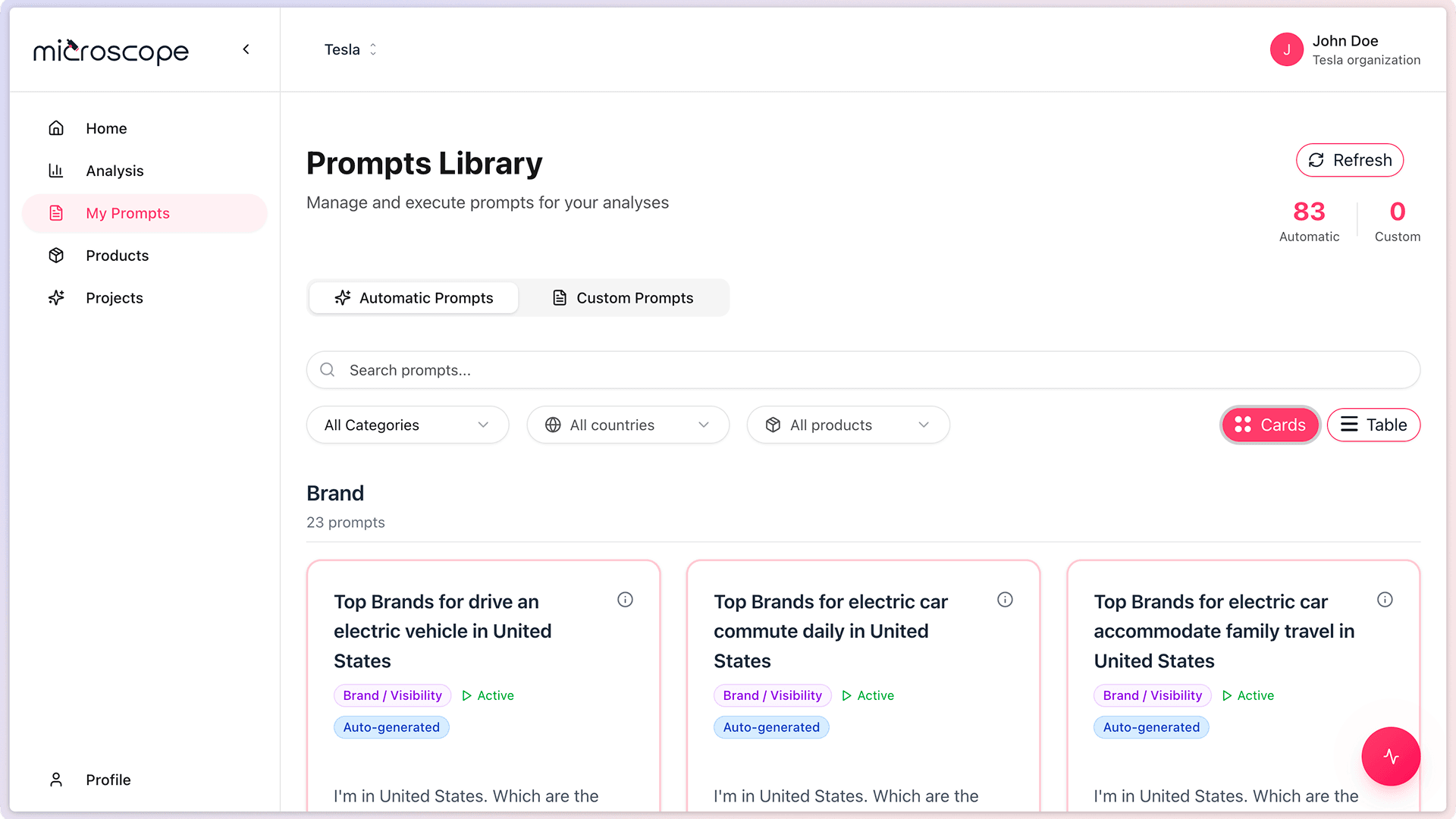
Understanding the Library Interface
Main View
The Prompts Library displays:
- Usage statistics
- Search and filters
- List of prompts
Filtering and Searching
The Prompts Library offers multiple filtering options to help you find relevant prompts quickly:
Types of prompts
The library typically organizes prompts by:
- Automatic - Pre-built prompts only
- Custom - Your created prompts only
Filter by Category
View prompts by category
- Brand prompts
- Product prompts
- Technical prompts
- Trust prompts
Filtering helps you focus on specific areas of your monitoring strategy. For detailed explanations of what each category measures, example prompts, and strategic guidance, see Prompt Categories Explained.
Filter by Country
Filter prompts by geographic market or target region. Essential for:
- Brands operating internationally
- Regional market variations
- Localized monitoring strategies
Filter by Product
Filter prompts associated with specific products in your catalog. This is useful for:
- Monitoring product-specific performance
- Product launch campaigns
- Comparing how AI responds about different offerings
Search Functionality
Find specific prompts:
- Search by keyword or phrase
- Find prompts mentioning specific products
- Locate prompts for certain scenarios
- Filter by prompt text content
List of prompts
Prompt Information Displayed
Click on any prompt to see:
- Full prompt text - The complete question or statement
- Category - Which category it belongs to
- Type - Automatic or Custom
- Purpose - What the prompt is designed to measure
- Usage history - Which analyses have used this prompt
Organizing Your View
List vs. Grid View
Choose the view that works best for you:
- List view - More detailed information per prompt
- Grid view - See more prompts at once
Using Prompts from the Library
You don't execute prompts directly from the library. Instead, they're used as building blocks for analyses. For a complete guide on creating and running analyses, see What is an Analysis.
Automatic Prompts in the Library
How They Appear
Automatic prompts are:
- Clearly labeled as "Automatic"
- Organized by category
- Generated based on your industry
- Cannot be deleted
- Always available for use
Reviewing Automatic Prompts
Take time to understand what each automatic prompt tests:
- Read the full prompt text
- Understand the expected AI response
- Consider how it relates to your business
Custom Prompts in the Library
How They Appear
Custom prompts display:
- Labeled as "Custom"
- Creator name (who created it)
- Creation date
- Edit and delete options (if you have permissions)
Team Custom Prompts
Custom prompts created by team members:
- Are visible to all users in the project
- Can be used by anyone in analyses
- Can be edited/deleted by any team member (currently all users have full access)
- Help share monitoring strategies across the team
Note: In a future release, prompt editing/deletion will be restricted to the creator and Admins/Owners.
Best Practices for Browsing
- Explore regularly - New automatic prompts may be added
- Review all categories - Don't focus on just one area
- Read full text - Don't rely on prompt names alone
- Consider combinations - Think about how prompts work together
- Note gaps - Identify what's missing for custom prompt creation
- Share discoveries - Inform team of valuable prompts
Common Tasks in the Library
Finding Prompts for a New Analysis
- Filter by category relevant to your goal
- Select 10-20 prompts for a comprehensive analysis
- Include a mix of categories for balanced insights
- Add custom prompts for specific needs
Auditing Your Prompt Portfolio
- Review all prompts periodically
- Identify underused prompts
- Find outdated custom prompts to retire
- Discover new automatic prompts
Learning from Existing Prompts
- Study how automatic prompts are structured
- Use them as inspiration for custom prompts
- Understand what makes effective prompts
- Adapt proven patterns to your needs
Next Steps
Now that you know how to browse the library, you're ready to:
- Learn about prompt categories in detail
- Create your first custom prompt
- Build your first analysis
- Execute prompts and review results