⚠️ IMPORTANT: Role-based access control is currently in development. At present, all team members have full access to all features. The planned role system is described below for future reference.
Microscope.ai supports team collaboration, and you can invite team members to join your organization. Currently, all users have full access. This guide explains the current functionality and planned role-based features.
Current Access Model
All team members currently have complete access to:
- Create and manage all projects
- Add and edit products
- Create and run analyses
- View all results and insights
- Invite other team members
- Configure organization settings
- Manage subscription and billing
Note: Role-based permissions (Owner, Admin, Member, Viewer) are planned for a future release to allow more granular control.
Planned User Roles (Future)
When role-based permissions are implemented, the following roles will be available:
Owner (Planned)
- Full administrative access
- Manage billing and subscription
- Invite and remove team members
- Assign roles
- Delete organization
Admin (Planned)
- Manage projects and configurations
- Invite and manage members
- Full access to all projects
- Cannot manage billing or delete organization
Member (Planned)
- Create and run analyses
- Create custom prompts
- View all project data
- Limited project management
Viewer (Planned)
- View-only access to results
- Cannot create or edit content
- Cannot run analyses
Inviting Team Members
How to Invite
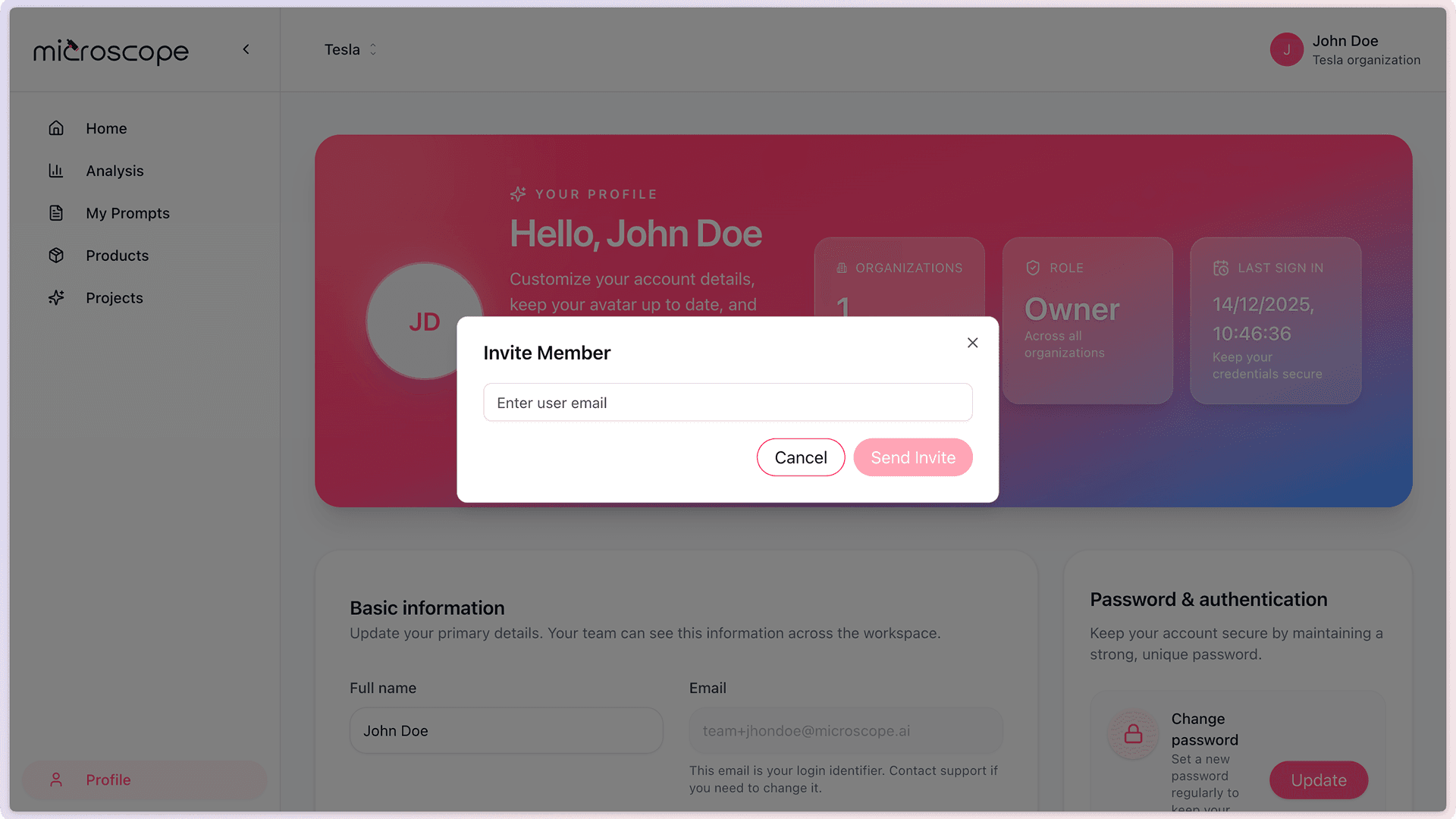
- Go to Profile → Invite Members
- Enter email address
- Add optional personal message (optional)
- Click Send Invitation
Note: Currently, you cannot select a role during invitation. All invited members will have full access.
Invitation Process
- Invitee receives email
- They click invitation link
- Create account or log in
- Automatically added to organization
- Gains full access to all features
Invitation Management
- View pending invitations
- Resend invitations
- Cancel invitations
- Track invitation status
Managing Existing Members
Viewing Team
- Go to Profile → Organizations
- See all organization members
- View member status
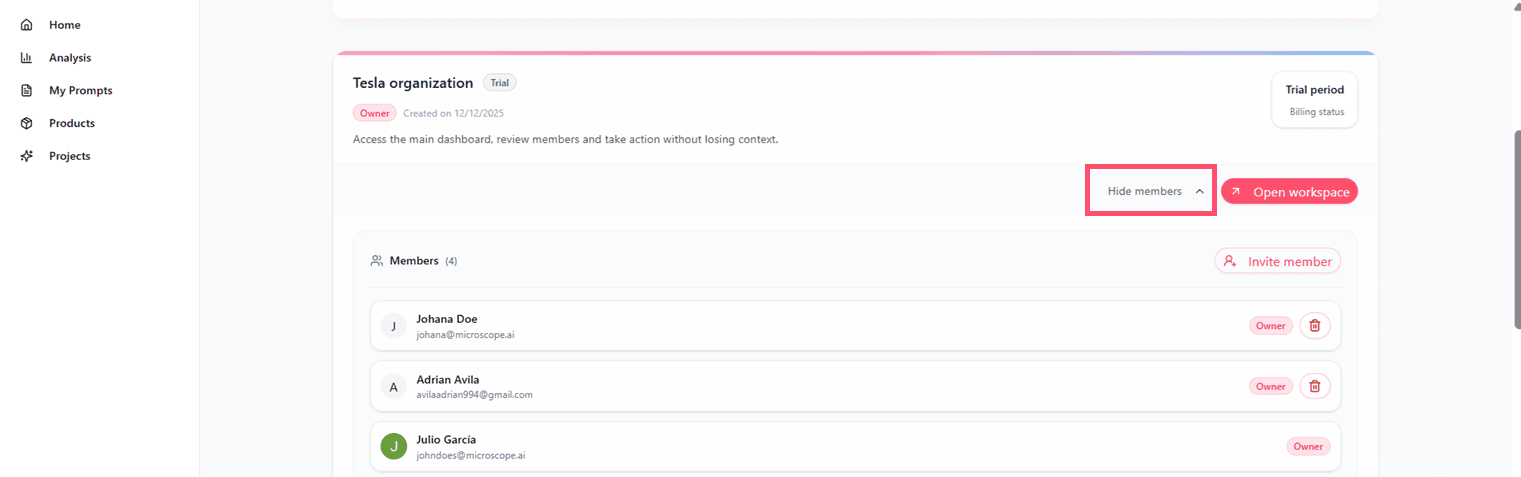
- See last activity (if available)
Note: Role assignment and management features will be available in a future update.
Removing Members
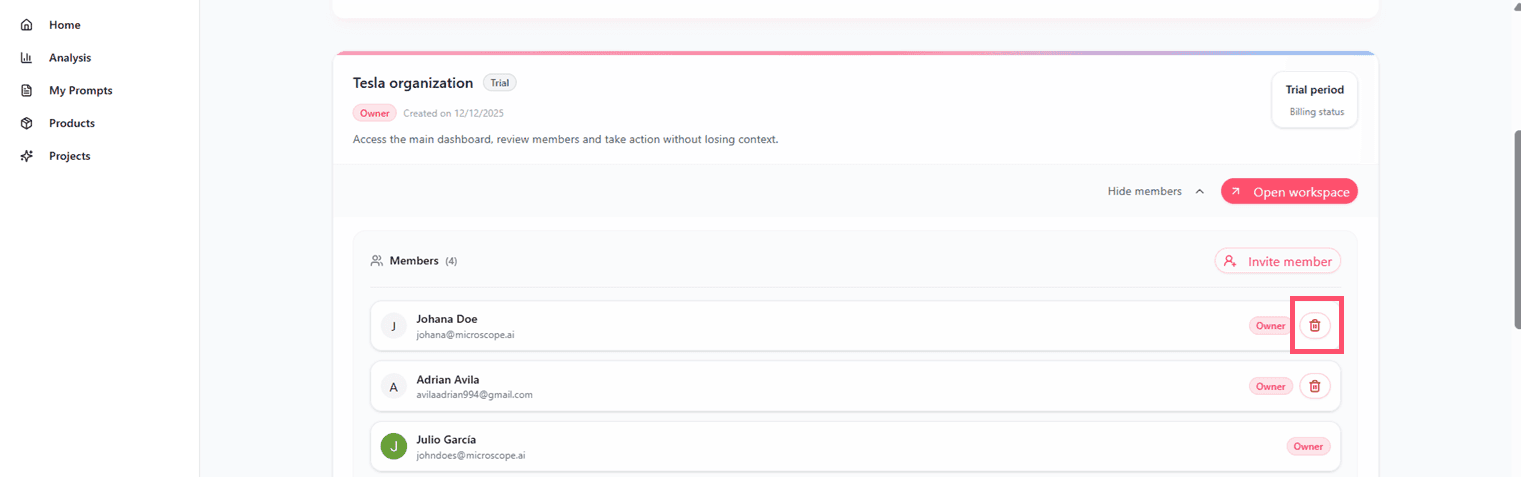
- Select member to remove
- Click Remove or Delete
- Confirm action
- Member loses access immediately
- Their created content remains
Important: Be cautious when removing members since all users currently have full access, including the ability to make significant changes.
Team Collaboration
Shared Access
- All team members see same projects
- Shared prompt library
- Common analysis history
- Collaborative custom prompts
- Unified dashboard views
Collaboration Best Practices
- Define clear responsibilities through communication
- Regular team reviews of results
- Document who does what
- Communicate changes clearly
- Be mindful that all users have full access
Organization Settings
Organization Name
- Update organization name
- Visible to all members
- Used in interface
- Can be changed anytime
Organization Management
- View organization details
- See member count
- Check subscription status
- Access billing (Owner only)
- View usage statistics
Best Practices
- Invite trusted members only - Everyone has full access
- Regular audits - Review team members quarterly
- Offboard properly - Remove ex-members immediately
- Document responsibilities - Clear expectations for each person
- Communicate changes - Notify team of important updates
- Plan ahead - Consider how you'll use roles when they become available
Common Scenarios
Adding Agency Partners
When adding external partners, be aware they will have full access:
- Ensure trust and proper agreements are in place
- Consider creating a separate organization if needed
- Document what they should and shouldn't access
- Remove access when partnership ends
Temporary Access
- Invite the person to the organization
- Document expected end date
- Communicate access boundaries clearly
- Remove access immediately when no longer needed
Team Growth
- Carefully vet new team members
- Provide clear onboarding and guidelines
- Establish team communication protocols
- Plan how you'll structure roles when they become available
Next Steps
With team management configured, you're ready to:
- Configure organization settings
- Manage subscription and billing
- Build collaborative workflows