Creating your Microscope.ai account is the first step toward monitoring and optimizing your brand's presence in AI-powered search results. This guide walks you through the account creation process from start to finish.
Before You Start
Before creating your account, make sure you have:
- A valid business email address
- Your company or organization name
- Information about your website or brand to monitor
- Authorization to create accounts for your organization (if required by your company)
Account Types
Microscope.ai offers different subscription plans to suit various needs:
- Trial - Free trial to explore the platform.
- Focus - For focused monitoring.
- Magnify - For comprehensive monitoring.
- Enterprise - For large-scale operations.
You can start with a 14 days trial and upgrade at any time as your needs grow.
Step-by-Step Account Creation
Step 1: Access the Signup Page
Navigate to the Microscope.ai signup page:
- Go to app.microscope.ai in your web browser
- Click on the Sign Up or Start 14 day free trial button
- You will be directed to the account creation form
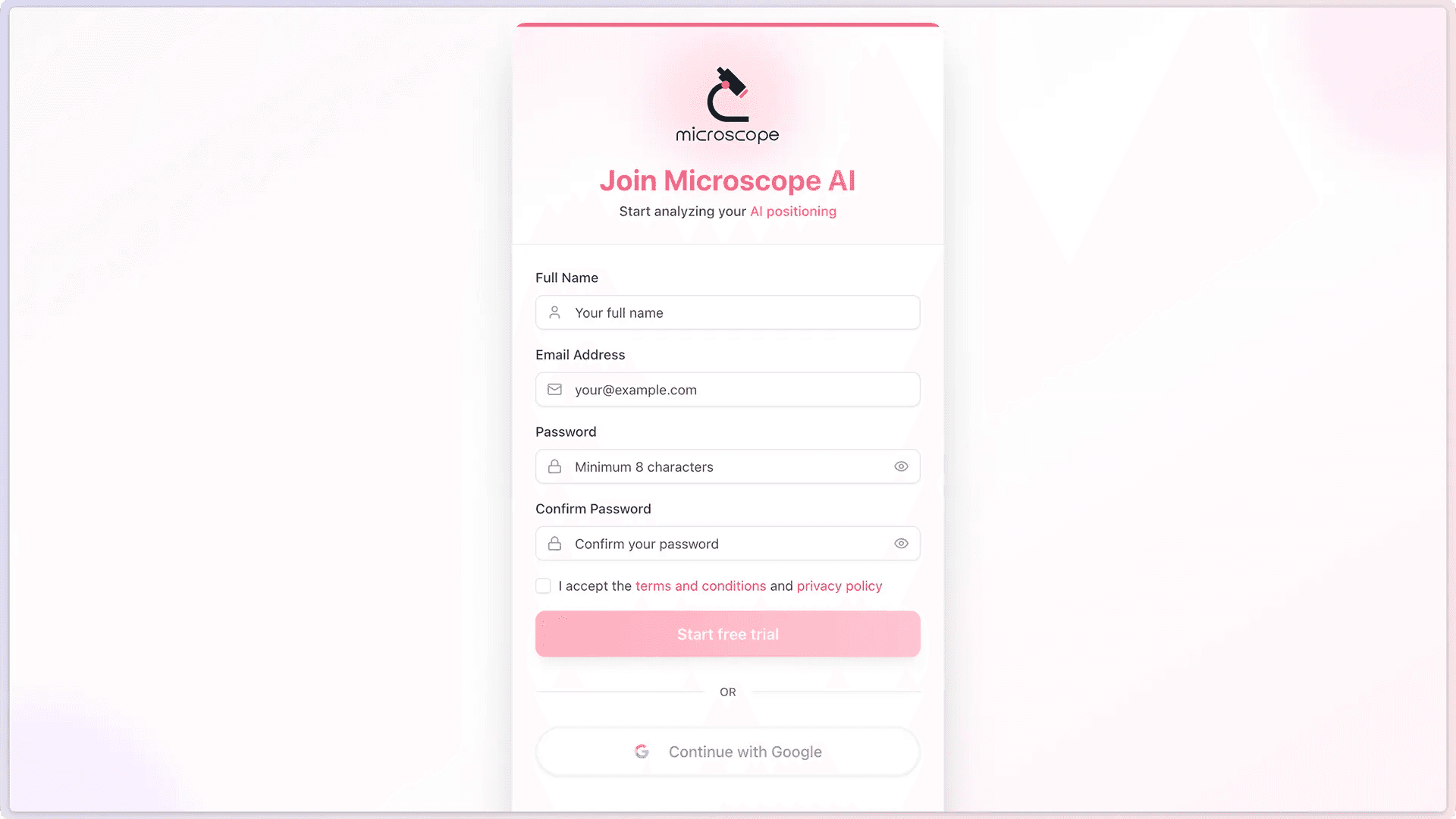
Step 2: Enter Your Information
Fill in the required information:
- Full Name - Your first and last name
- Email Address - Use a valid business email that you have access to
- Password - Create a strong password (minimum 8 characters, including letters and numbers)
- Confirm Password - The password confirmation
Use a strong, unique password. We recommend using a password manager to generate and store secure passwords.
Step 3: Accept Terms and Conditions
Review and accept:
- Terms of Service
- Privacy Policy
- Data Processing Agreement (if applicable for your region)
Make sure you understand how your data will be used and protected.
Step 4: Submit Your Registration
After filling in all required fields:
- Double-check that your email address is correct
- Click the Start free trial button
- Wait for the confirmation message
Email Verification
After submitting your registration, you will need to verify your email address.
Verification Process
- Check your inbox - Look for an email from Microscope.ai (usually arrives within a few minutes)
- Open the verification email - The subject line will typically be "Confirm Your Signup"
- Click the verification link - This will activate your account
- Return to the login page - You may be automatically logged in, or you may need to log in manually
If You Don't Receive the Email
If the verification email doesn't arrive:
- Check your spam or junk folder
- Wait 5-10 minutes (sometimes delivery is delayed)
- Check that you entered your email address correctly
- Request a new verification email from the login page
- Contact support if the problem persists
First Login
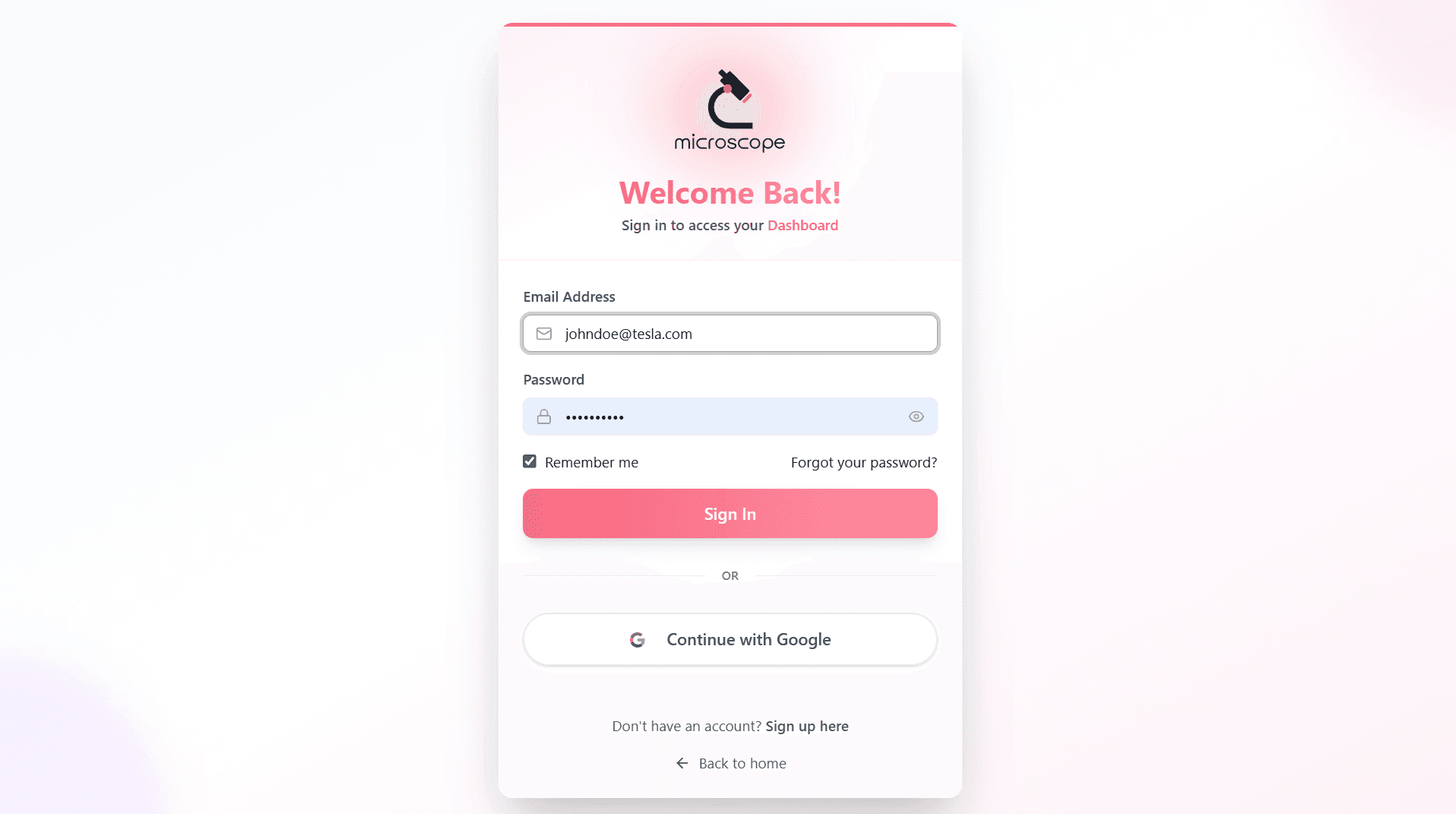
Once your email is verified, you can log in to your new account:
- Go to app.microscope.ai/signin
- Enter your email address and password
- Click Sign In
- You will be directed to your new Microscope.ai dashboard
What to Expect
On your first login, you will:
- See a form to create your first project
- Have access to all features included in your plan
- Be able to start setting up your AI search monitoring immediately
Initial Setup Tasks
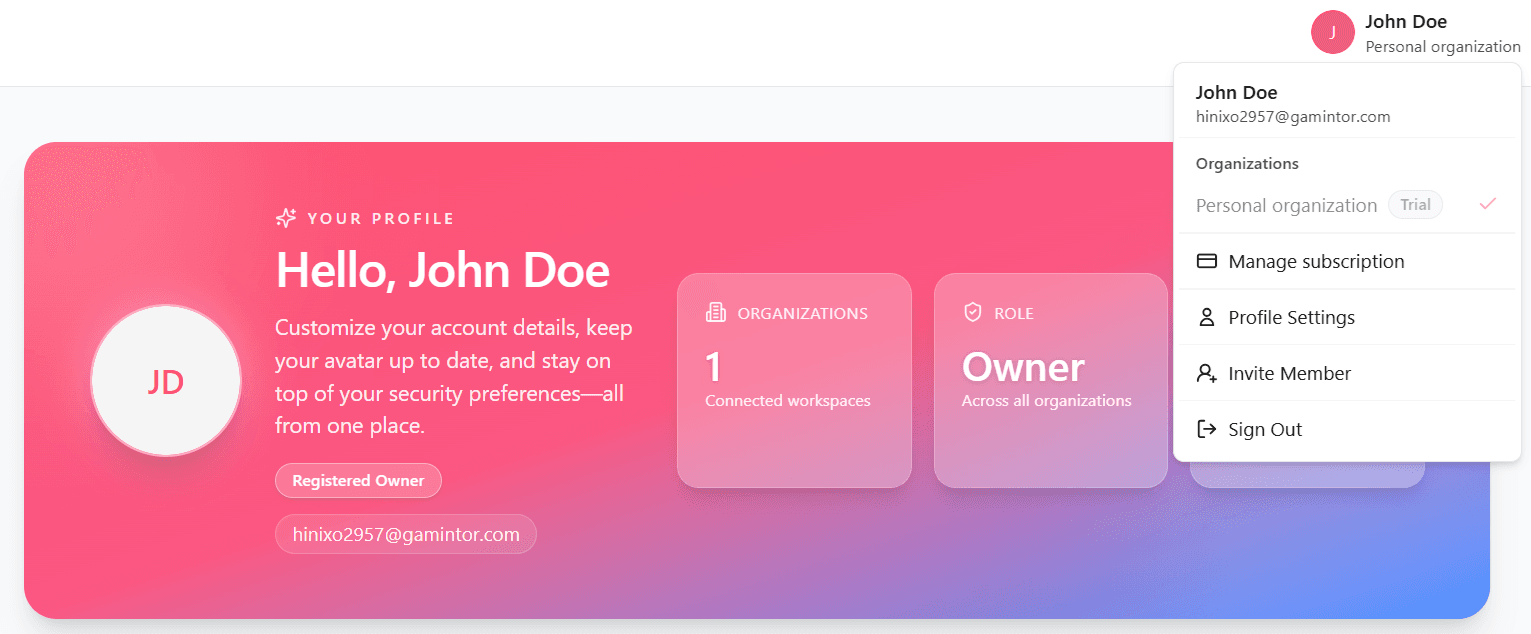
After creating your account, we recommend completing these initial setup tasks:
1. Complete Your Profile
- Add your full name
- Upload a profile photo (optional)
2. Invite Team Members
If you plan to work with a team:
- Navigate to Organization settings
- Click Invite Members
- Enter team members' email addresses
- Send invitations (Note: All members currently have full access)
- Consider who you invite carefully, as everyone will have complete access
3. Choose Your Subscription Plan
If you started with a trial:
- Review available subscription plans
- Assess your monitoring needs
- Upgrade to a paid plan when ready
- Enter payment information
Next Steps
Now that your account is created, you're ready to:
- Complete your first login - Access your new dashboard
- Explore the interface - Familiarize yourself with the platform
- Create your first project - Set up monitoring for your brand
- Add products - Build your product catalog
- Run your first analysis - Start monitoring your AI presence
Take advantage of the help resources to get up to speed quickly. The sooner you start monitoring, the sooner you'll gain valuable insights.