ℹ️ CURRENT STATUS: All team members in an organization currently have full access to all features and capabilities. There are no role restrictions at this time.
Microscope.ai enables effective team collaboration through shared access to projects, analyses, and insights. This guide explains how to work together safely and productively when all team members have complete access to the platform.
Current Access Model
All users in an organization currently have identical permissions:
- Full Project Access - Create, edit, and delete any project
- Complete Analysis Control - Run, modify, or delete any analysis
- Product Catalog Management - Add, edit, or remove any product
- Prompt Library Access - Create, edit, or delete any custom prompt
- Organization Settings - Change settings, invite/remove members, manage billing
- Shared Results - View all analyses and historical data
This open collaboration model works best for small to medium teams where trust and communication are strong.
Inviting Team Members
To collaborate with your team:
How to Invite
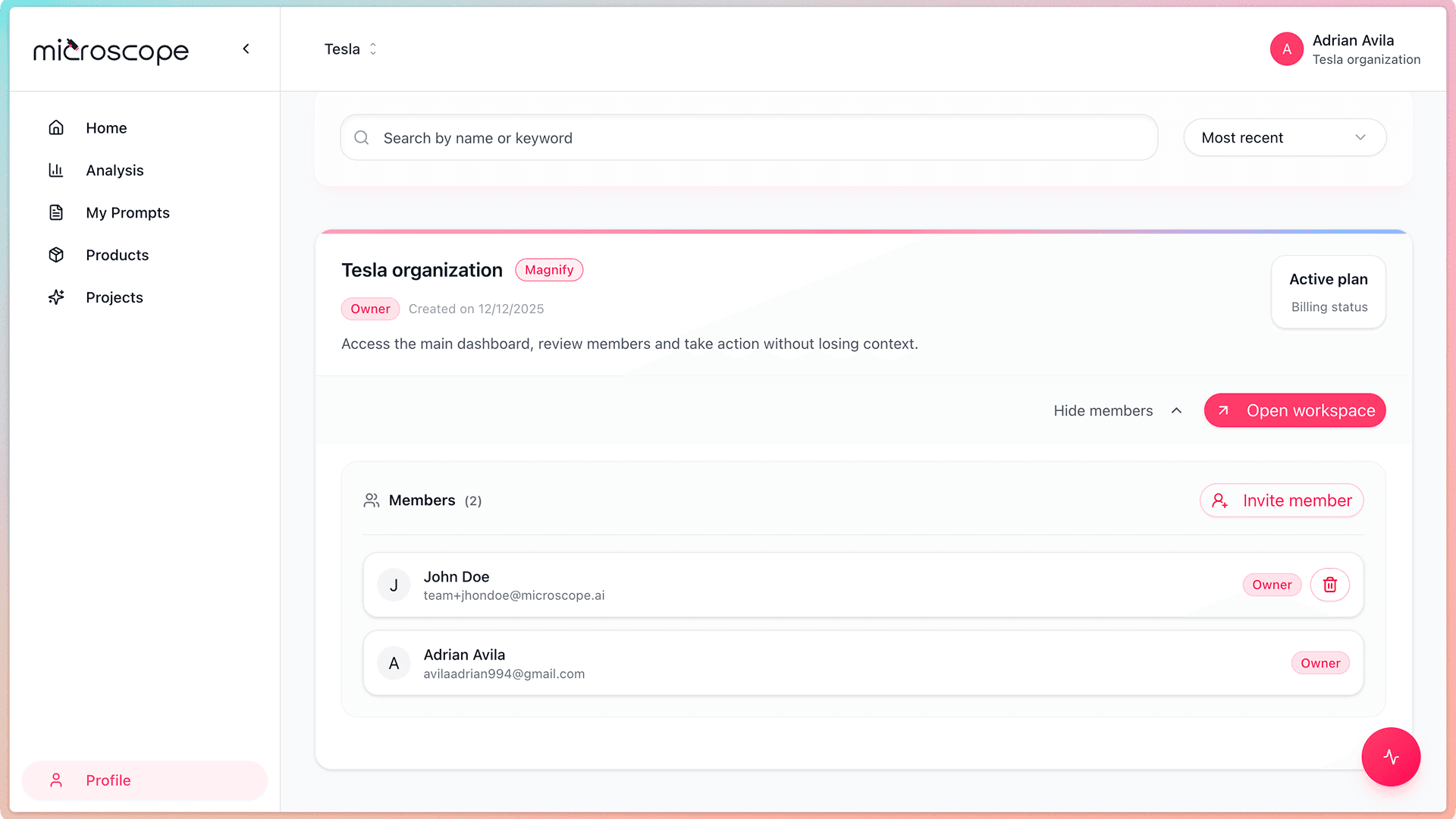
- Go to Profile → Invite Members
- Enter email address
- Click Send Invite
What Happens Next
- If the user does not have an account, they will receive an email with a link to create one and join the organization.
- If the user already has an account, they will be automatically added to the organization.
- Once they join, they will have access to the organization’s projects and features based on their permissions.
Collaboration Best Practices
Communication is Key
Since everyone has full access, clear communication prevents conflicts:
- Coordinate major changes - Discuss before deleting projects or analyses
- Share analysis schedules - Avoid duplicate work
- Document custom processes - Note who is working on what
- Regular team syncs - Weekly reviews of results and changes
Shared Responsibility
- Everyone can contribute - Any team member can create projects, run analyses, or add products
- Quality over speed - Take time to do things right
- Learn from each other - Share insights and techniques
- Celebrate wins together - Recognize team contributions
Managing Team Access
Viewing Team Members
- Go to Profile → Organizations
- See all current members
- View member role
Removing Team Members
- Locate them in the organization members list
- Click the remove (trash) icon
- Confirm the action
- Access is revoked immediately
- Their created content remains available
⚠️ Be cautious with removals since all users currently have full access to make significant changes.
When to Consider Separate Organizations
- Different teams need isolation
- Client-specific work requires separation
- Different billing or subscription needs
- Regulatory or compliance requirements
- Teams exceed 10-15 members
Frequently Asked Questions
Can I restrict what team members can do?
Currently, no. All team members have identical full access to all features and data within the organization.
What happens if someone accidentally deletes something?
Deletions are permanent and cannot be undone. Always communicate before making destructive changes.
Can team members see each other's work?
Yes, all projects, analyses, prompts, and results are visible to all team members in the organization.
How do I know who made what changes?
Currently, there's no detailed audit trail showing who made specific changes. This is a planned feature.
What's the maximum team size?
There's no hard limit, but teams larger than 15-20 members may benefit from separate organizations or improved communication processes.
Next Steps
To start collaborating effectively:
- Invite your trusted team members
- Set up your first shared project
- Establish communication norms
- Create your team's first analysis together