Scheduling and automation transform one-time analyses into continuous monitoring systems. This guide explains how to set up and manage automated analyses for consistent tracking with minimal manual effort.
Why Automate Analyses
Benefits of Automation
- Consistency - Regular data collection at predictable intervals
- Efficiency - No manual execution required
- Trend tracking - Historical data for comparisons
- Time savings - Set once, run automatically
- Completeness - Never miss a monitoring cycle
- Objectivity - Removes human delay or forgetfulness
When to Automate
- Ongoing brand monitoring
- Regular competitive tracking
- Long-term trend analysis
- Executive reporting schedules
- Campaign performance monitoring
Setting Up Scheduled Analyses
During Analysis Creation
- Create new analysis or edit existing
- Configure prompts and models
- Choose frequency
- Save analysis
Editing Existing Analysis
- Open the analysis
- Select a schedule
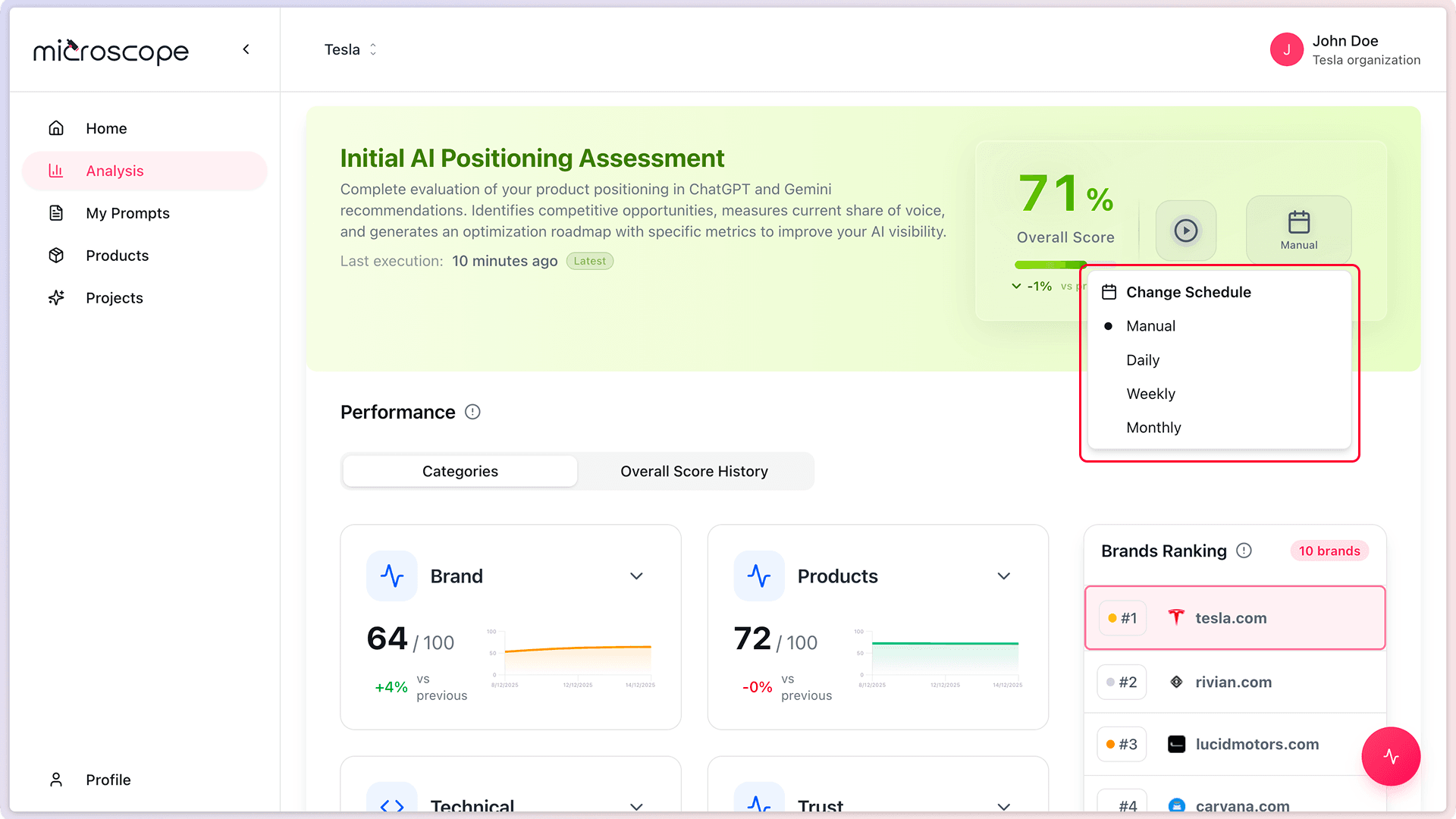
Scheduling Options
Recurring Execution
Set analyses to run automatically on a repeating schedule:
Daily Recurrence
Execute every day at specified time:
Best for: High-priority metrics, rapid-change scenarios, competitive intelligence
Considerations: Consumes quota quickly, generates large data volumes
Weekly Recurrence
Execute once per week.
Best for: Standard ongoing monitoring, most common frequency, balanced data collection
Recommended: Most businesses find weekly sufficient
Monthly Recurrence
Execute once per month
Best for: Long-term trend tracking, executive reporting, quota-constrained plans
Considerations: May miss short-term changes
Managing Scheduled Analyses
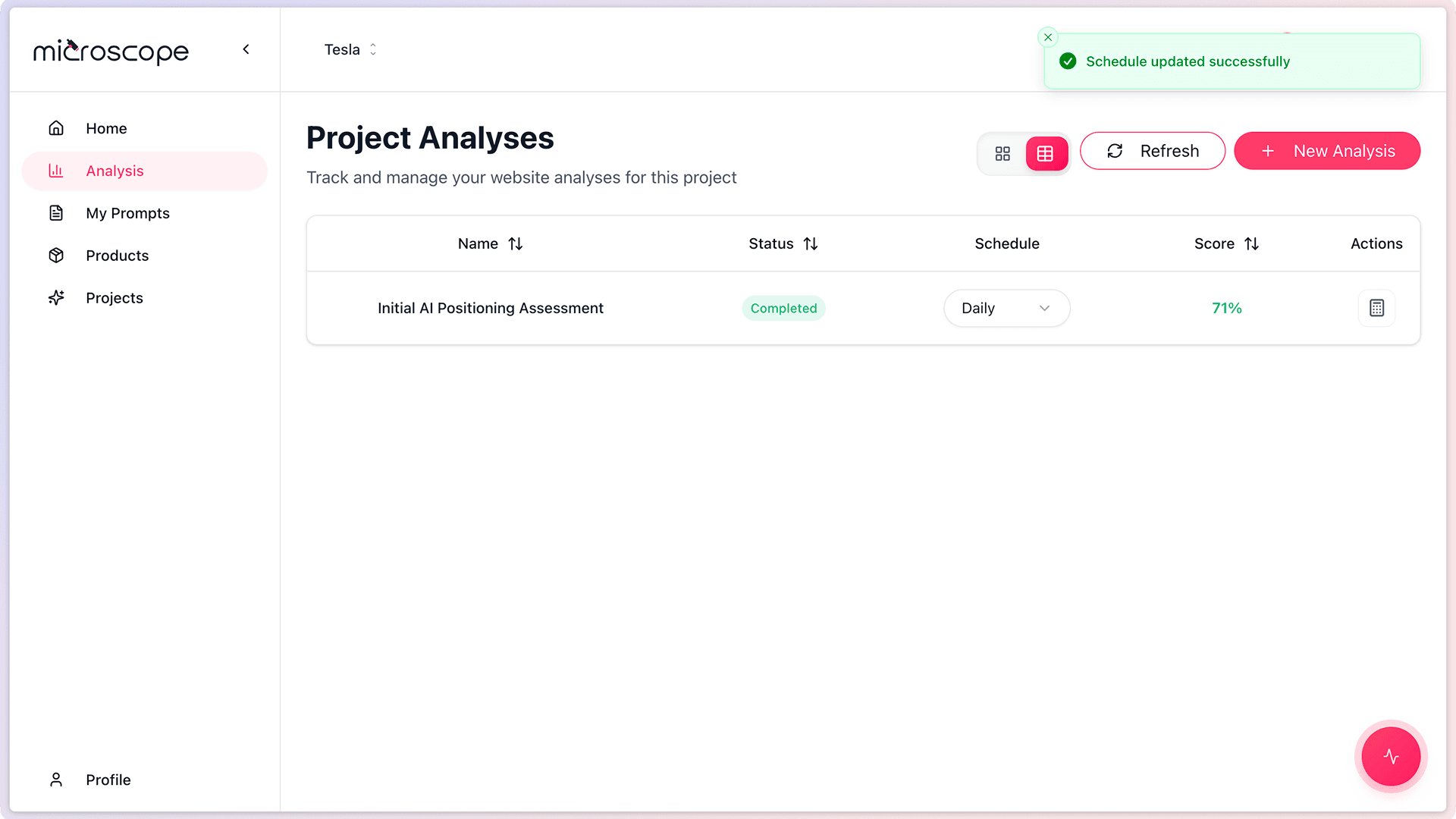
Viewing Schedule
See all scheduled and recurring analyses:
- Navigate to Project Analyses
- Filter or sort by name/scheduled/date/score/status
- Search or sort by name/scheduled/date/status
Pausing Scheduled Analyses
Temporarily stop automatic execution:
- Open the analysis
- Change Schedule to Manual
Resuming Scheduled Analyses
- Open paused analysis
- Change Schedule
Editing Scheduled Analyses
Change schedule or configuration:
- Open the analysis
- Modify settings (frequency, prompts, models)
- Save changes
- Changes apply to future executions
- Past execution results unchanged
Stopping Scheduled Analyses
Permanently end recurring execution:
- Open the analysis
- Click Stop Schedule or End Recurrence
- Confirm action
- Analysis remains available for manual execution
- Schedule must be reconfigured to restart
Automation Strategies
Tiered Monitoring Approach
Weekly Comprehensive
- All key prompts and models
- Every Sunday at 2am
- Provides weekly snapshots
Daily Priority
- 10-15 critical prompts
- Top 2 models
- Every day at 6am
- Quick daily pulse
Monthly Deep Dive
- All prompts, all models
- Last day of month
- Comprehensive monthly report
Campaign Monitoring
- Pre-launch - One-time scheduled analysis before go-live
- During campaign - Daily execution for 2-4 weeks
- Post-campaign - Weekly for 2 months to track lasting impact
Competitive Intelligence
- Weekly recurring analysis
- Focus on comparison prompts
- All models (competitors may perform differently per model)
Quota Management with Automation
Estimating Quota Needs
Calculate monthly quota consumption:
- Daily analysis: Prompts × Models × 30 days
- Weekly analysis: Prompts × Models × 4 weeks
- Monthly analysis: Prompts × Models × 1 month
Example: 20 prompts, 3 models, weekly = 20 × 3 × 4 = 240 quota/month
Quota Safeguards
- Monitor quota usage weekly
- Prioritize analyses (critical ones run first)
- Configure analyses to pause if quota exceeded
Optimizing Quota Usage
- Reduce prompt count in frequent analyses
- Use fewer models for daily runs
- Increase interval (weekly instead of daily)
- Rotate which analyses run when
Monitoring Automation Health
Regular Checks
- Review execution history weekly
- Check for failed executions
- Verify results quality
- Assess quota consumption vs. budget
- Update schedules as needed
Warning Signs
- Repeated execution failures
- Rapidly depleting quota
- Results showing no variation (possible prompt issues)
- Missed executions
Maintenance Tasks
- Monthly: Review all scheduled analyses
- Quarterly: Reassess frequencies and priorities
- Annually: Complete automation strategy audit
- As needed: Adjust for campaigns or changes
Troubleshooting Scheduled Analyses
Analysis Didn't Run
- Check if paused or stopped
- Verify quota availability
- Confirm schedule settings correct
- Review execution logs for errors
- Check account status
Inconsistent Execution Times
- Verify time zone settings
- Check for system maintenance windows
- Review execution queue (may be delayed)
- Adjust timing to off-peak if needed
Best Practices Summary
- Start with weekly frequency - Balance between data and quota
- Use consistent timing - Same day/time for trend tracking
- Monitor quota usage - Don't let automation drain quota
- Review regularly - Quarterly assessment of all automation
- Document strategy - Clear plan for which analyses run when
- Test before automating - Run manually first to verify configuration
Next Steps
With scheduling and automation mastered, you're ready to:
- Set up comprehensive monitoring system
- Learn how to interpret and compare results over time
- Build dashboards and reports from automated data
- Optimize your monitoring strategy based on trends