Running an analysis is the moment when Microscope.ai queries AI models with your selected prompts and collects results. This guide covers execution methods, monitoring progress, and handling issues.
Ways to Run an Analysis
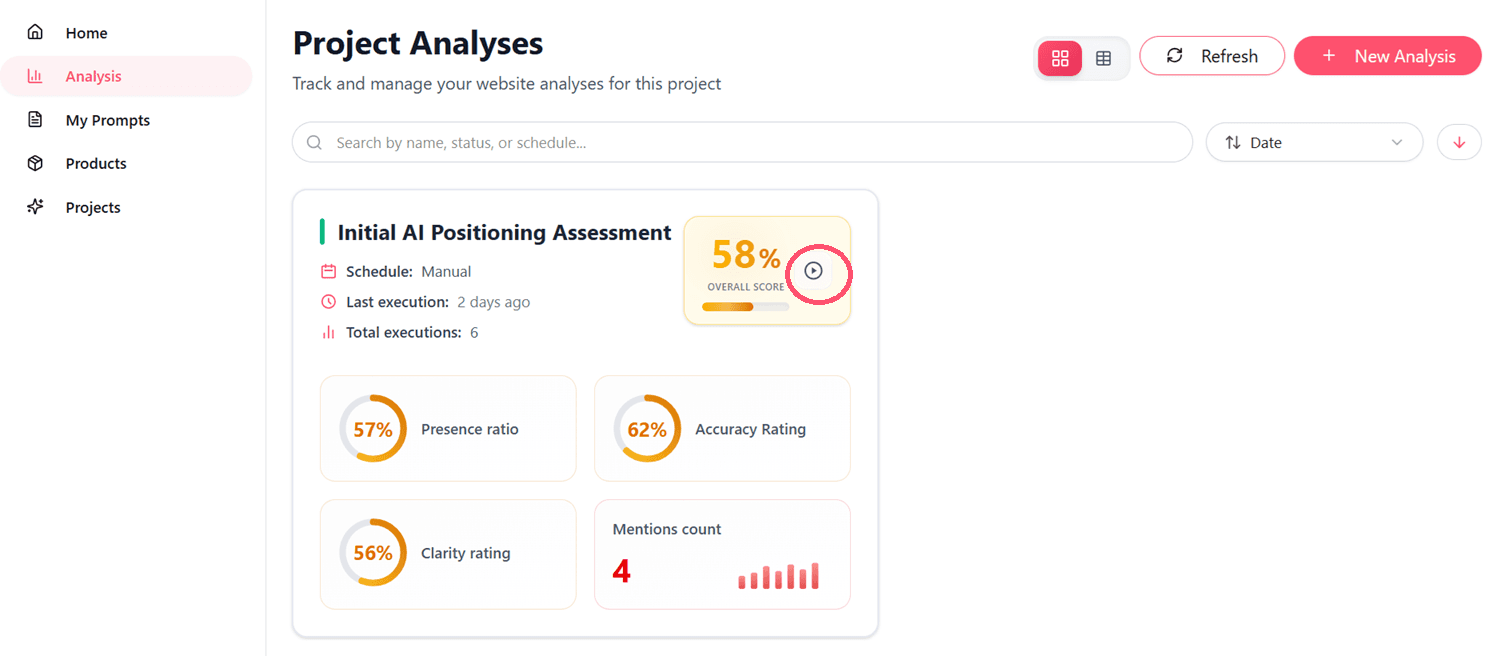
From Analysis List
- Navigate to Project Analyses
- Find your analysis in the list
- Click Execute Analysus button
- Confirm execution if prompted
From Analysis Detail Page
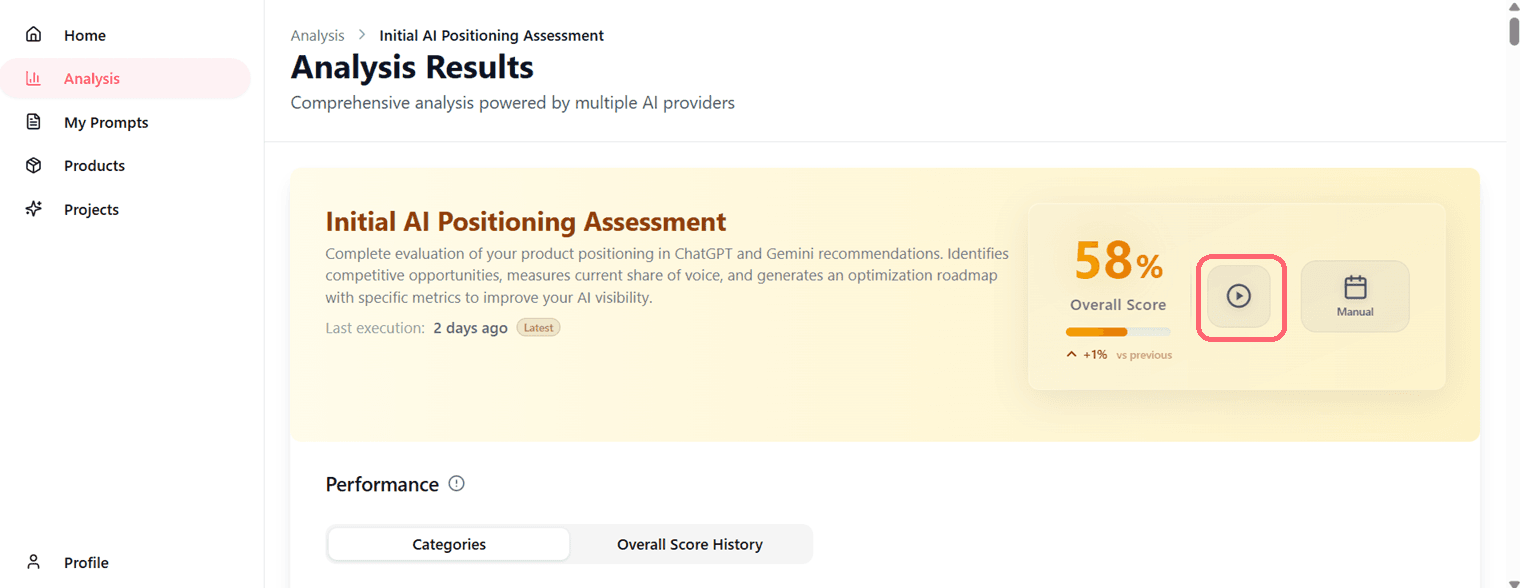
- Open the analysis
- Click the run analysis button
- Execution begins immediately
Scheduled Execution
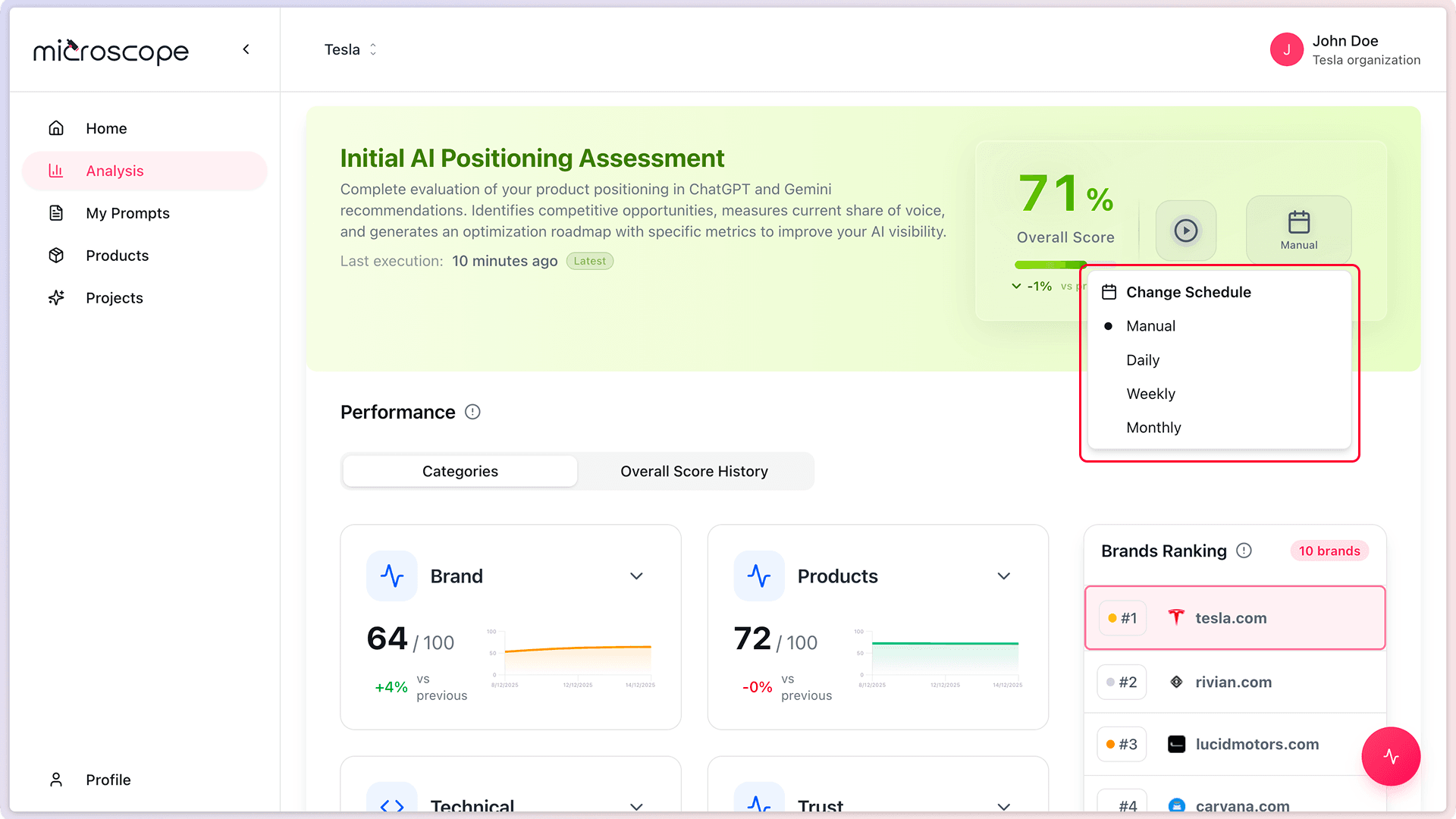
Analyses configured with future execution times run automatically:
- No manual action required
- Runs at specified date/time
- Notifications sent when complete
- Can be cancelled before execution
- Executes according to frequency setting
The Execution Process
What Happens During Execution
When you run an analysis, Microscope.ai:
- Prepares your selected prompts with context (brand, products)
- Sends prompts to each selected AI model
- Collects AI model responses
- Analyzes responses for mentions, accuracy, positioning
- Calculates scores and metrics
- Generates insights and recommendations
- Stores results for review
Execution Phases
Queued
- Analysis is waiting to start
- May be waiting for system resources
- Priority analyses move ahead in queue
Running
- Prompts being sent to AI models
- Responses being collected
- Progress typically visible
- Most time spent here
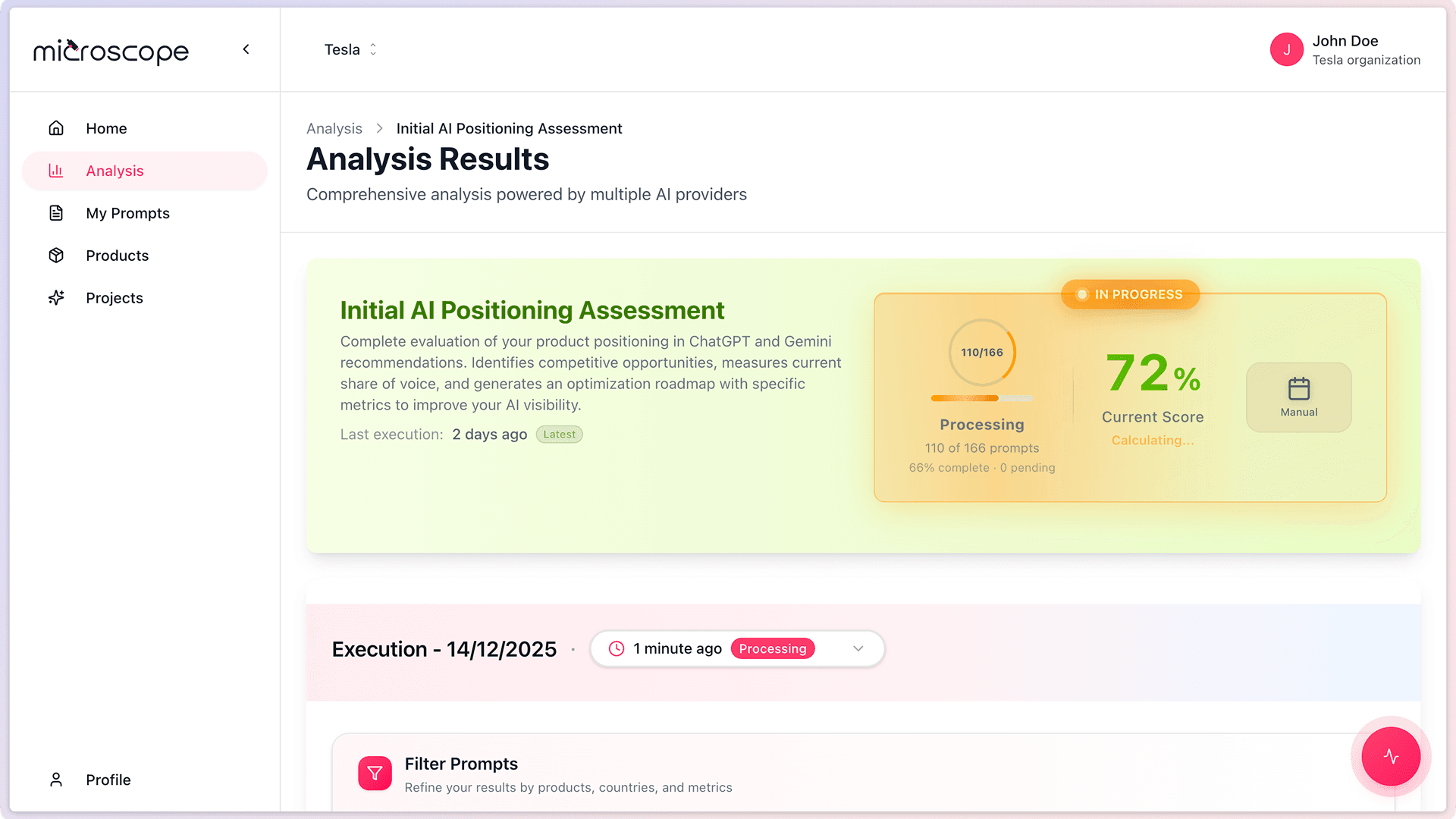
Processing
- Analyzing collected responses
- Calculating scores
- Generating insights
- Usually quick (1-2 minutes)
Complete
- All results available
- Notifications sent
- Ready for review
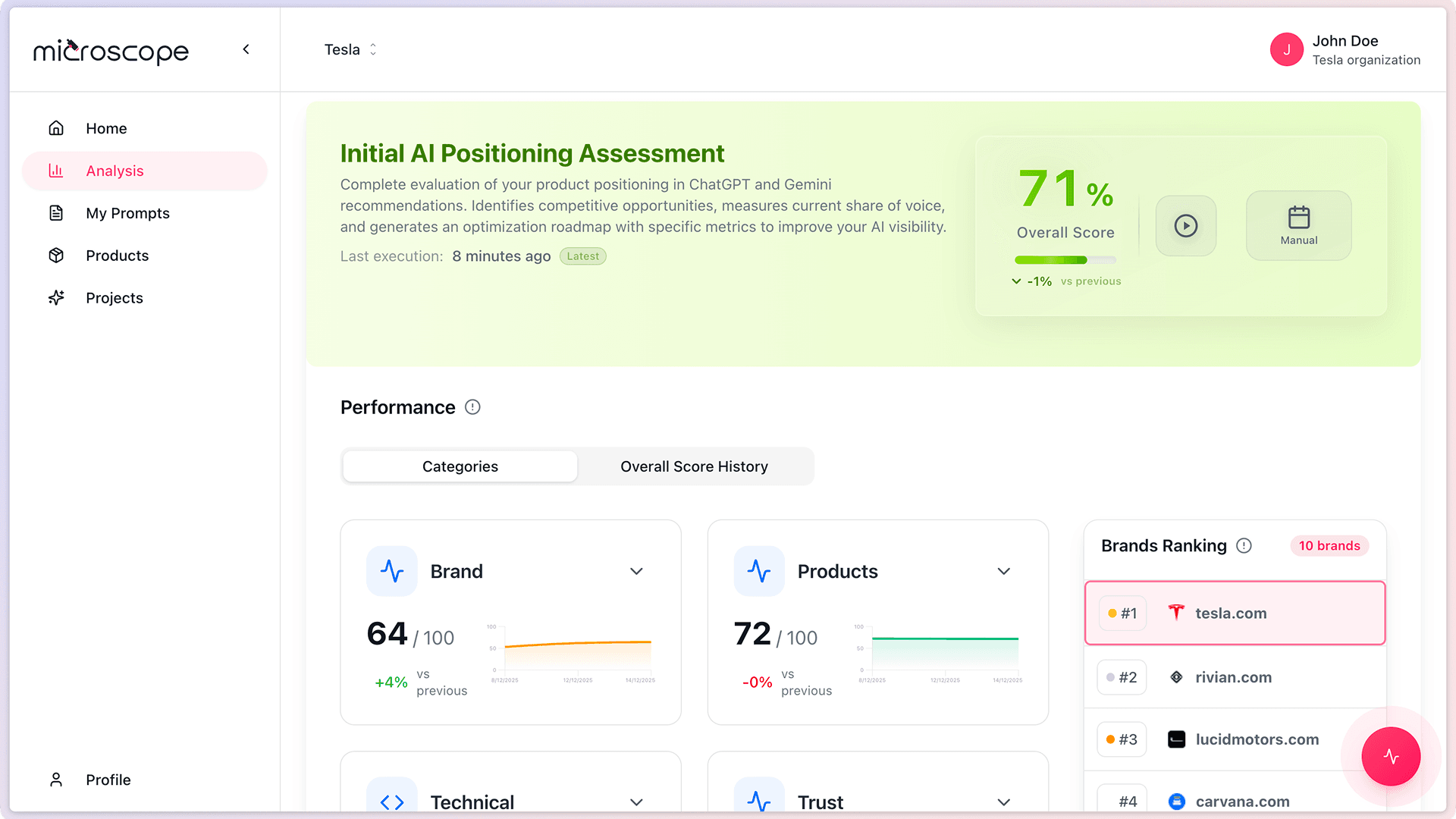
Monitoring Execution Progress
Execution Status Page
When you run an analysis, you'll see:
- Current execution status
- Progress indicator or percentage
- Estimated time remaining
- Which models are being queried
- Any errors or warnings
Progress Indicators
Overall Progress
- Percentage complete
- Prompts processed vs. total
- Models queried vs. total
Detailed Progress
- Per-model status
- Per-prompt status
- Any failed prompts
- Retry attempts
Real-Time Updates
- Page may auto-refresh
- Status updates appear live
- Notifications for completion
- Can navigate away - execution continues
You don't need to stay on the page during execution. Feel free to navigate away; you'll be notified when complete.
Execution Time
Typical Duration
Execution time depends on:
- Number of prompts (more prompts = longer)
- Number of models (more models = longer)
- AI model response times (variable)
- System load and queue
- Network conditions
What Affects Speed
Faster Execution
- Fewer prompts
- Fewer models
- Off-peak times
- High-priority analyses
Slower Execution
- More prompts and models
- Peak usage times
- Normal or low priority
- AI model rate limits
During Execution
What You Can Do
- Navigate to other pages
- Work on other tasks
- Create other analyses
- Review previous results
What You Cannot Do
- Edit the analysis configuration (for this execution)
- Cancel execution mid-run (usually)
- Access results (until complete)
After Execution Completes
Notifications
Depending on your settings, you'll receive In-app notification
Immediate Next Steps
- Review overall scores
- Check for any errors or warnings
- Explore detailed results
- Compare to previous executions
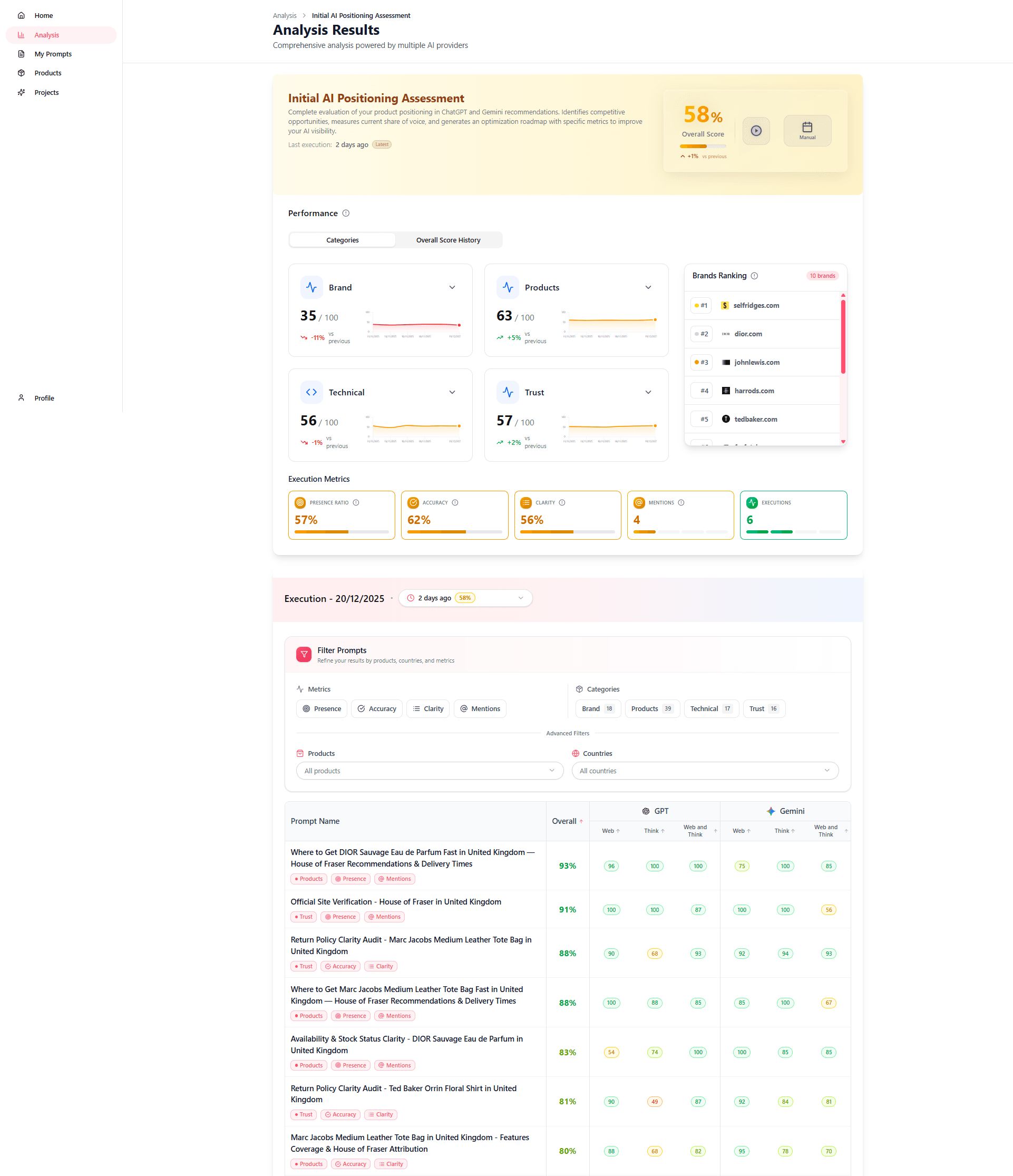
Execution Status Types
Success
Execution completed without issues:
- All prompts executed
- All models responded
- Results fully available
- Ready for analysis
Partial Success
Most prompts succeeded, but some failed:
- Some prompts or models failed
- Partial results available
- Error details provided
- Can retry failed prompts
Failed
Execution could not complete:
- Systemwide error occurred
- No results available
- Error message provided
- Retry entire execution
Handling Execution Issues
Execution Stuck in Queue
If execution doesn't start:
- Check system status page
- Verify quota availability
- Wait a few minutes
- Contact support if persists beyond 10 minutes
Execution Takes Too Long
If execution is unusually slow:
- Check progress - it may be normal for size
- Verify no AI model outages
- Wait for completion - cancelling wastes quota
- Consider reducing prompts/models for future runs
Prompts Failing
If specific prompts fail:
- Review error message for that prompt
- Check if prompt is valid
- Verify AI model availability
- Retry execution
- Edit or remove problematic prompts
Complete Execution Failure
If entire execution fails:
- Check error message
- Verify account status and quota
- Check AI model availability
- Try again in a few minutes
- Contact support with execution ID
Re-Running Analyses
When to Re-Run
- To get updated data
- After optimizing content
- To compare with previous executions
- If initial execution had errors
- As part of regular monitoring schedule
How to Re-Run
- Open the analysis
- Click the run analysis button
- Confirm execution
- New execution creates separate results
Re-Run Best Practices
- Wait appropriate time between runs (daily, weekly, etc.)
- Compare new results to previous
- Don't re-run excessively
Execution History
- Viewing Past Executions
- Comparing Executions
Best Practices
- Test with small analyses first - Verify configuration before large runs
- Monitor first execution - Ensure it completes successfully
- Review errors immediately - Fix issues before next run
- Schedule during off-peak - Potentially faster execution
- Keep execution history - Valuable for trend analysis
Troubleshooting Checklist
If execution issues occur:
- Check that prompts and models are selected
- Confirm account is active
- Check AI model status pages
- Review error messages carefully
- Try a smaller test analysis
- Contact support with execution ID and error details
Next Steps
Now that you know how to run analyses, you're ready to:
- Learn about scheduling and automation
- Understand how to interpret results
- Set up recurring monitoring
- Optimize based on execution feedback