Your first login to Microscope.ai is an important moment - it's when you'll start your journey toward optimizing your brand's AI presence. This guide walks you through what to expect and how to make the most of your initial experience.
Accessing Microscope.ai
After verifying your email, you're ready to log in:
- Open your web browser and navigate to app.microscope.ai (this is the landing page)
- Click Log In to access the application
- Enter the email address you used during registration
- Enter your password
- Click the Log In button
If your credentials are correct, you'll be directed to your Microscope.ai dashboard.
Your First Login Experience
On your first login, you'll immediately see a form to create your first project. This is your starting point in Microscope.ai.
Create Your First Project
The application will prompt you with a project creation form that includes:
- Project name and description
- Website URL for your brand
- Basic configuration settings
- Initial setup parameters
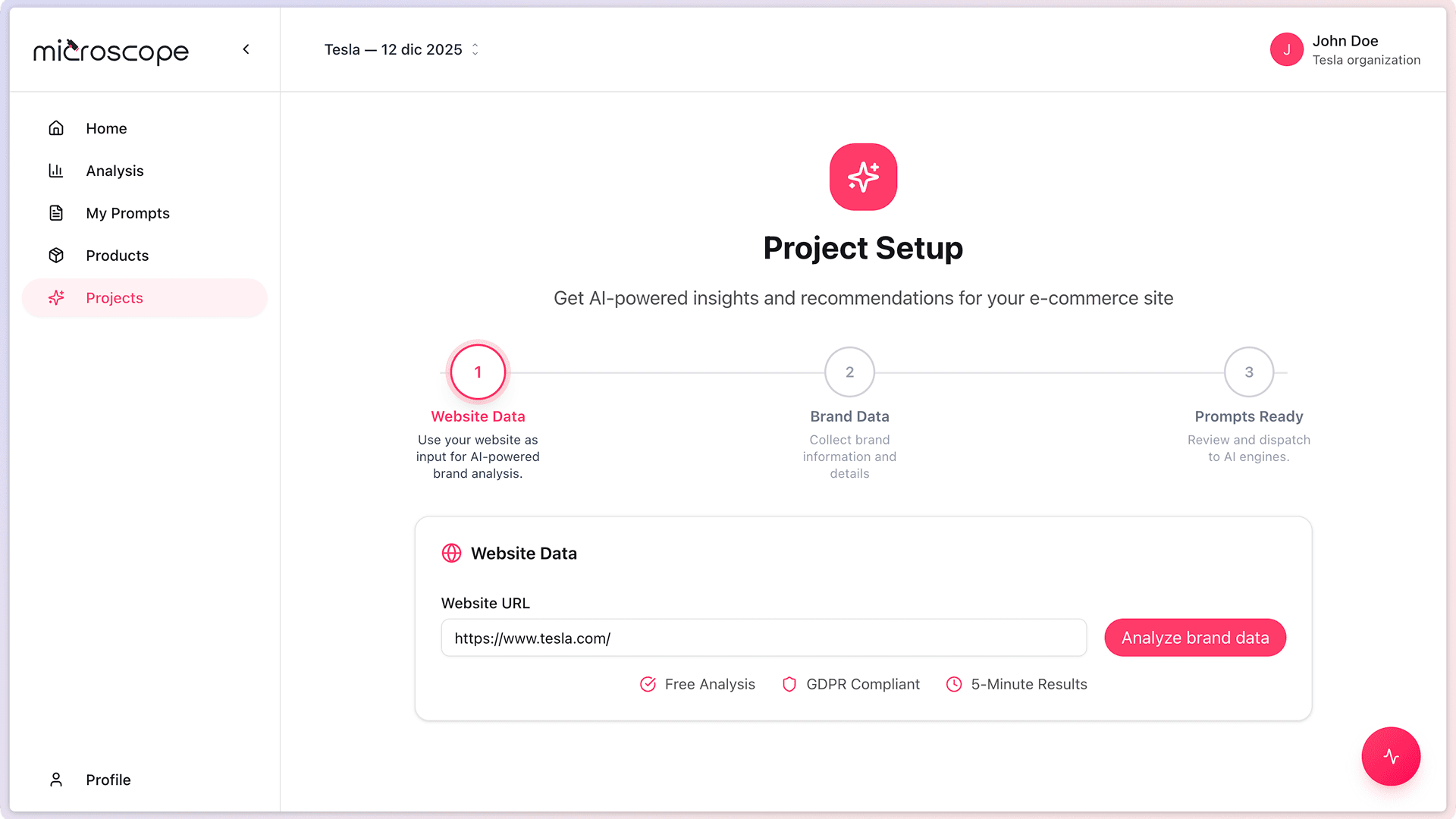
Understanding the Interface
Let's familiarize you with the main areas of Microscope.ai:
Top Navigation Bar
The top bar contains:
- Product Selector - Switch between products in your organization
- Profile Menu - Access to profile settings, organizations, manage subscriptions, invite member, and sign out
Left Sidebar Navigation
The main navigation menu provides access to (in order):
- Home - Your performance dashboard
- Analysis - View and manage your analyses
- My Prompts - Browse and manage your custom prompts
- Products - View your product catalog
- Projects - List and manage all projects
- Profile Menu - Quick access to profile settings, organizations, and manage subscription
Main Content Area
The center of the screen displays your dashboard with:
- Performance overview and metrics
- Charts and visualizations
- Quick access to key features
- Recent activity and insights

Profile Setup
It's worth reviewing and completing your profile information:
Accessing Profile Settings
- Click your profile menu in the top-right corner
- Select Profile Settings from the dropdown menu
- You'll see your profile information form
Information to Complete
- Full Name - Verify or update your name
- Email Address - This field is not editable (confirmed during registration)
- Profile Photo - Optional but helpful for team recognition
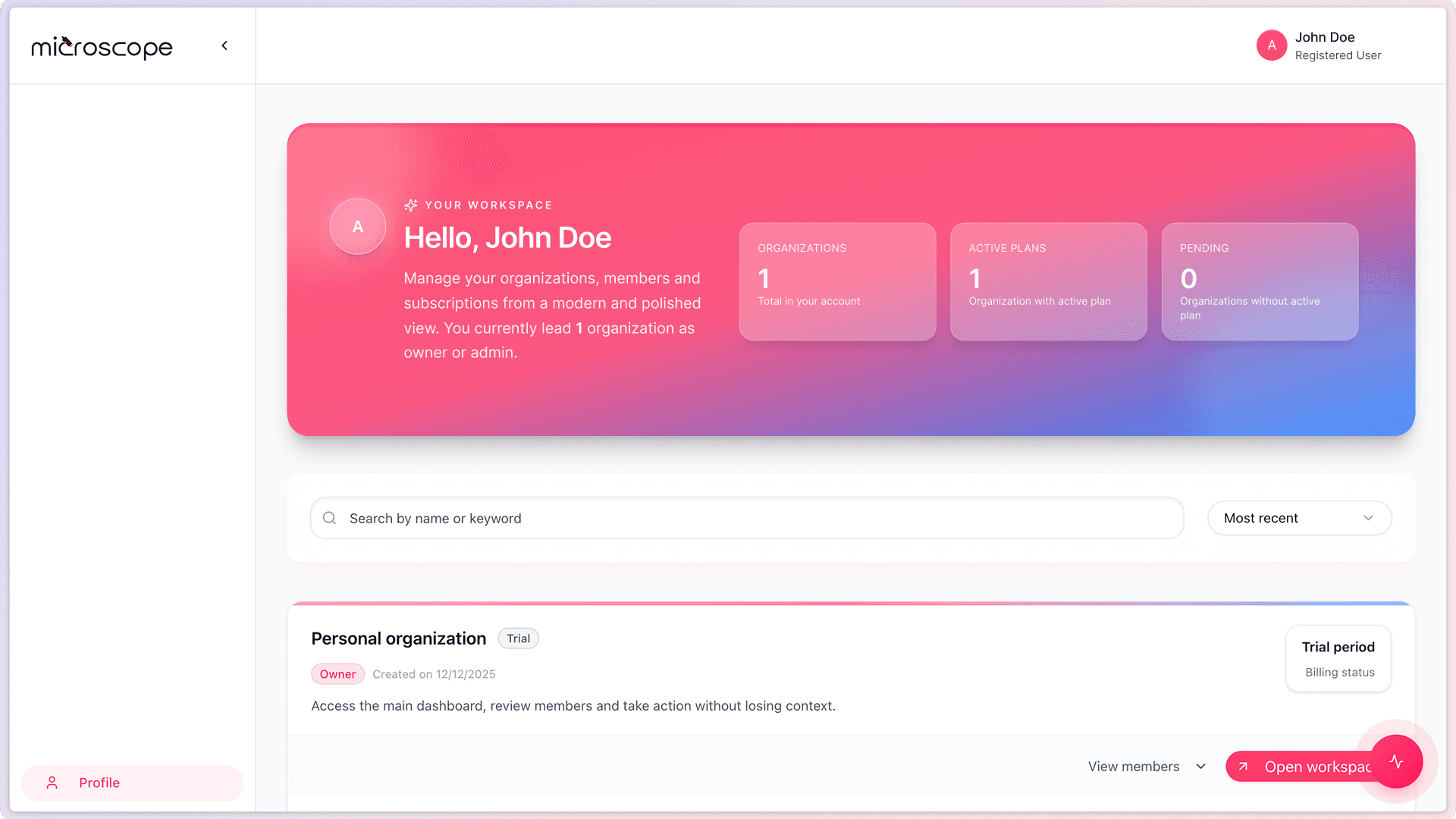
Organization Management
View your organization details and manage team members:
Access Organization Information
- Click your profile menu in the top-right corner
- Select Organizations from the dropdown
- You'll see a list of organizations you belong to
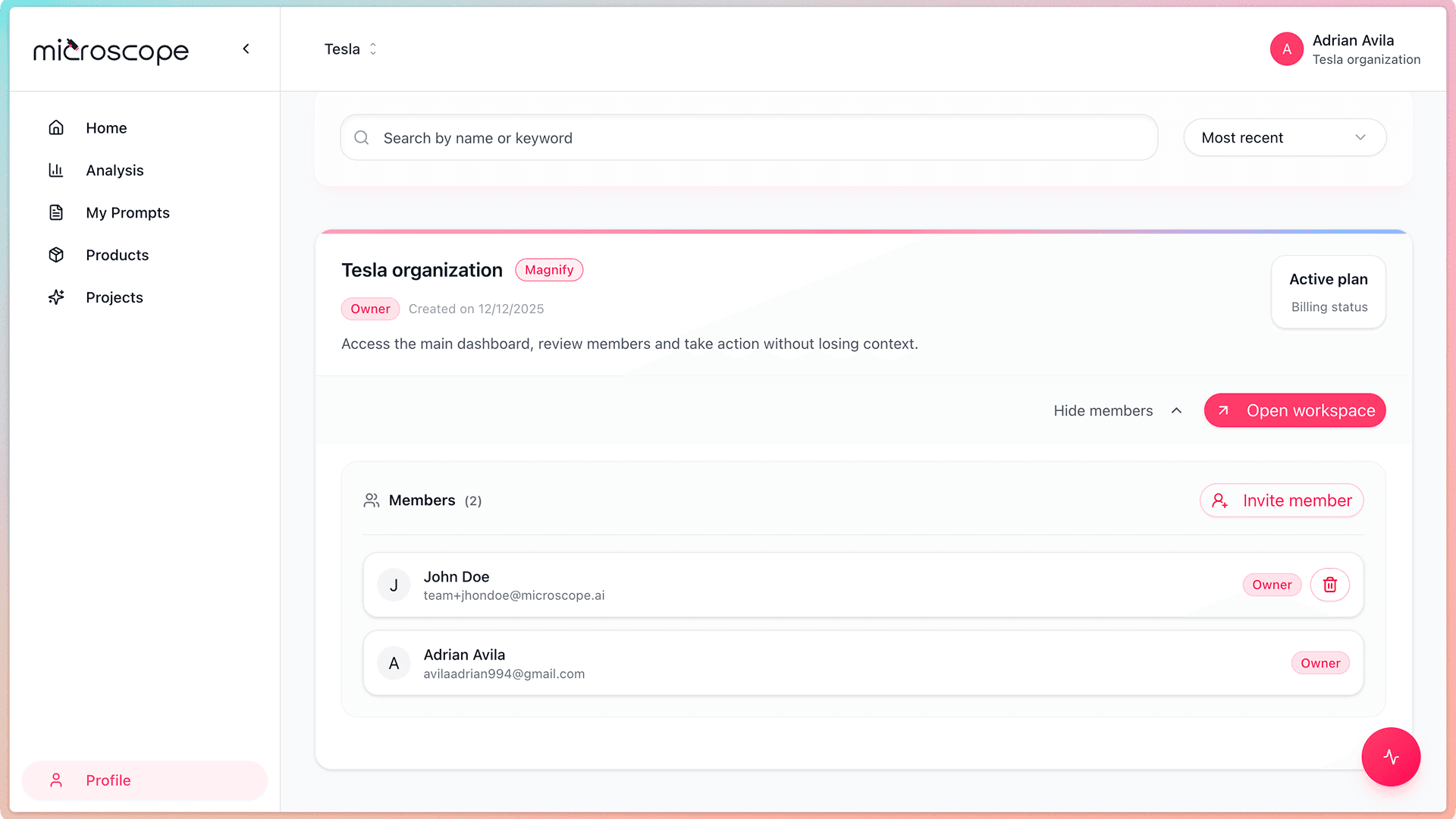
Managing Team Members
From the organization view, you can:
- View all members of your organization
- Invite new team members to collaborate
- Remove users from the organization
- See member roles and permissions
Understanding Your Subscription
Review what's included in your current plan:
Access Subscription Details
- Navigate to your profile menu in the top-right corner
- Select Manage Subscriptions
- View your current plan details and billing information
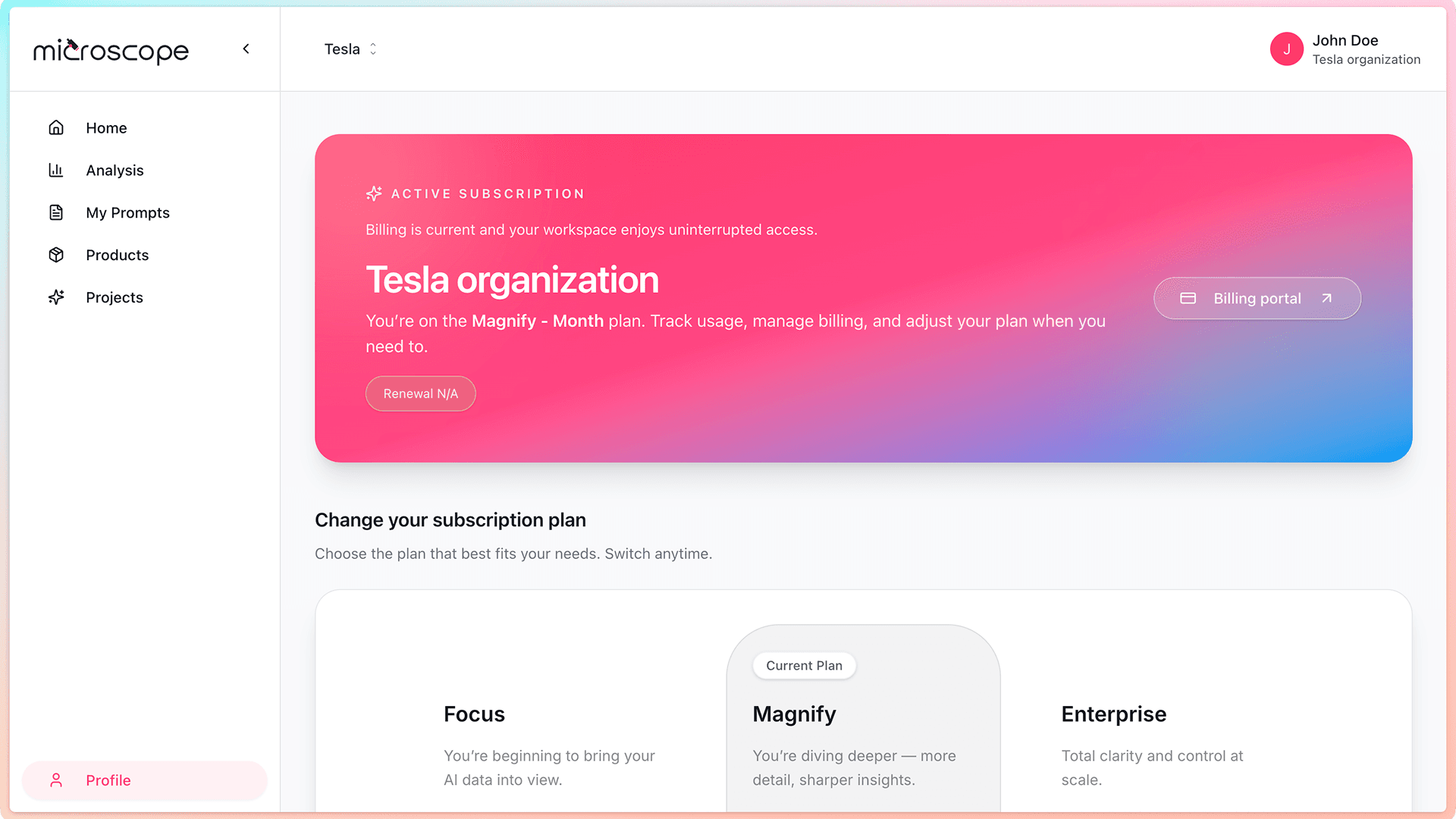
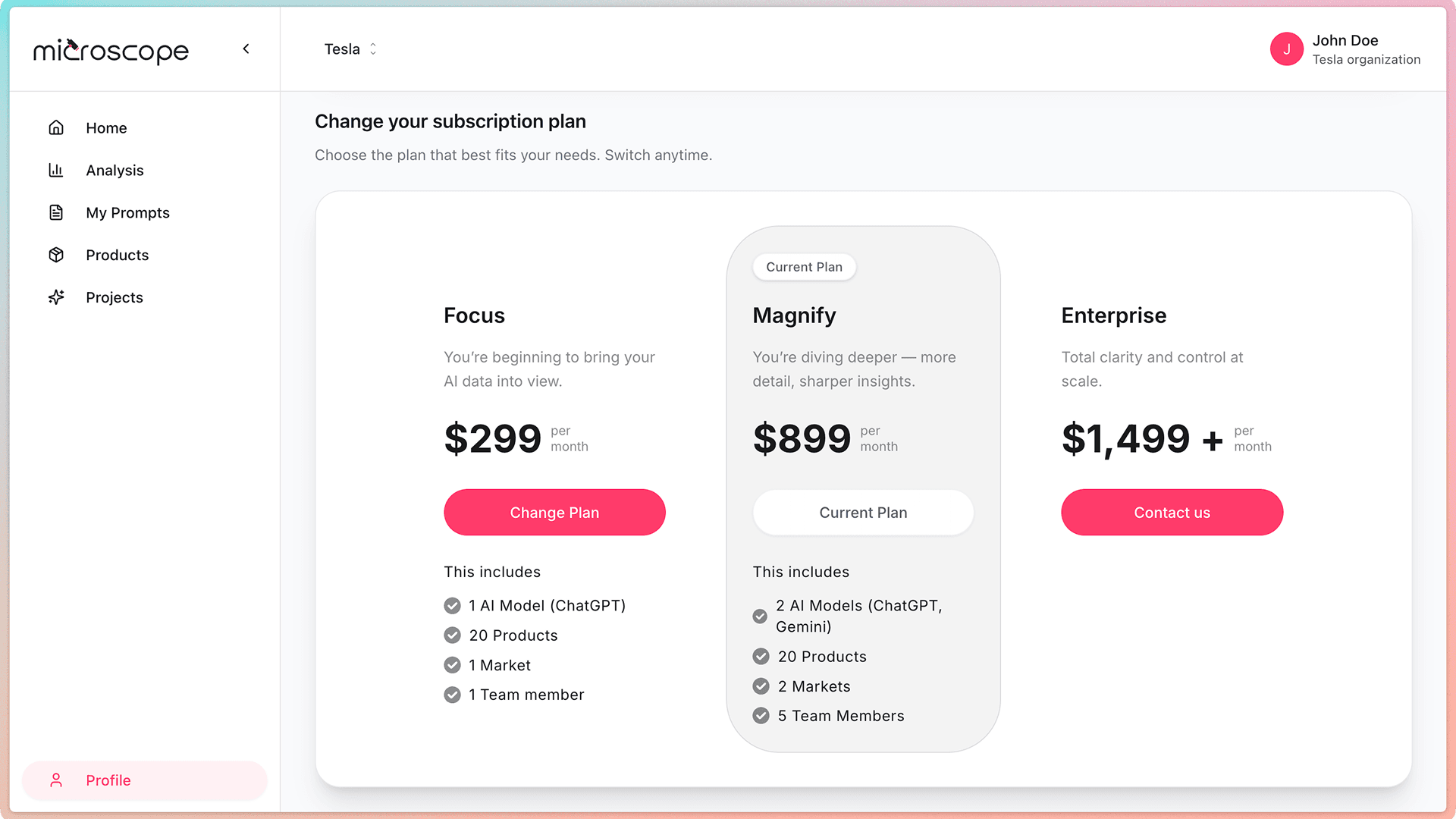
Plan Information and Comparison
In the subscription area, you can see:
- Current plan name and tier
- Features and limits included in your plan
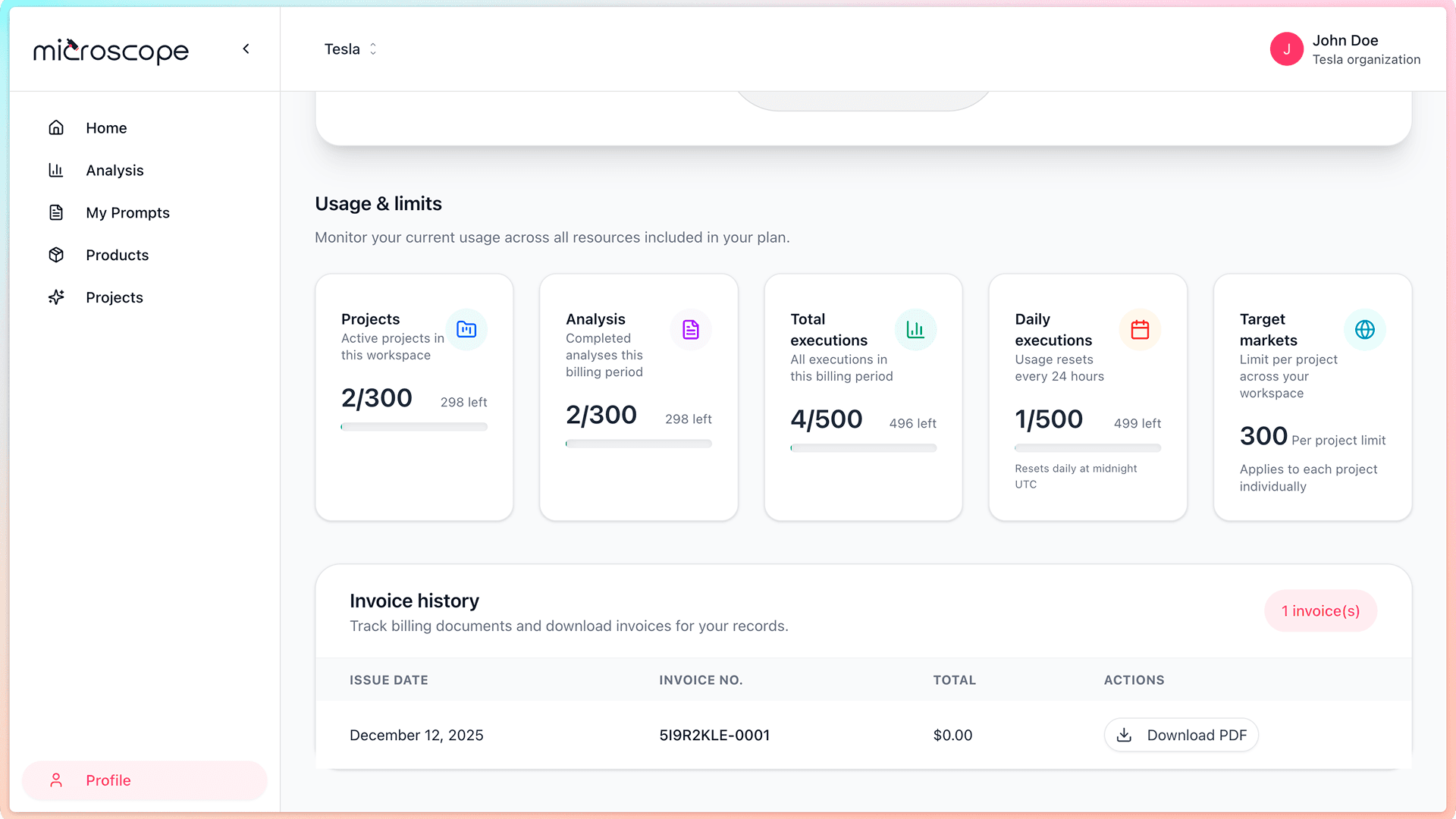
- Usage quotas (projects, products, analyses, daily executions)
- Number of users allowed
- Comparison of available plans and their features
- Options to upgrade or modify your plan
Billing Information
Review your billing history and payment details:
- Billing cycle and next payment date
- Payment method on file
- Invoice history and receipts
- Billing contact information
Exploring Your Dashboard
Once you've created your first project, your dashboard becomes your central hub for monitoring AI search performance:
Dashboard Features
The dashboard provides:
- Performance Metrics - Overall scores and trends for your projects
- Recent Activity - Latest analyses and executions
- Quick Actions - Shortcuts to create analyses, add products, or run tests
- Visual Analytics - Charts and graphs showing your AI search performance over time
Recommended First Steps
Here's what we recommend doing immediately after your first login:
- Complete the project creation form - Fill out the information for your first project
- Review your profile - Add your name and photo if desired
- Check organization members - See who else has access to your organization
- Understand your plan limits - Know what's included in your subscription
- Explore the navigation - Click through the main menu items to see what's available
- Add products to your catalog - Input the products you want to monitor
- Invite team members - Add colleagues who will collaborate with you
Getting Oriented
Where to Find Help
As you explore the platform, remember these help resources:
- Help Center - Comprehensive documentation and guides accessible from within the application
- Support + Contact Us - Available on the landing page for direct assistance
- Tooltips - Hover over elements throughout the interface to see explanatory information
- Chatbot - AI-powered assistant available on the landing page to answer questions
Common First-Time Questions
New users often wonder:
- "Where do I start?" - Complete the project creation form that appears on first login
- "How long until I see results?" - Analysis typically completes in minutes
- "Can I try it without committing?" - Trial plans are available but come with certain limitations
- "What if I make a mistake?" - Most actions can be undone or edited
- "Do I need technical knowledge?" - No, the platform is designed for marketers and business users
Browser and System Check
Optimal Experience
For the best experience with Microscope.ai:
- Browser - Use the latest version of Chrome, Firefox, Safari, or Edge
- Screen Resolution - Minimum 1280x720, recommended 1920x1080 or higher
- Internet Connection - Stable broadband connection
- JavaScript - Must be enabled
- Cookies - Must be allowed for authentication
Mobile Access
While Microscope.ai is optimized for desktop use:
- Mobile browsers are supported for viewing data
- Some complex features work best on larger screens
- Responsive design adapts to tablet screens
- Mobile apps may be available in the future
Next Steps
You're now familiar with the Microscope.ai interface and ready to:
- Create your first project
- Add products to your catalog
- Run your first analysis
- Explore automatic prompts
- Invite team members
- Set up your monitoring strategy
The journey to better AI search visibility starts with your first project. Let's get started!