Adding products to your catalog is essential for product-specific AI monitoring in Microscope.ai. This guide walks you through the process of adding products to your project.
Before You Add Products
Information to Prepare
Before adding products, gather the following information:
- Product Name - The official name of your product or service
- Description - What the product is, what it does, and why it matters
- Use Cases - Key scenarios where customers use this product
- Price - The current price of the product
- Currency - The currency for pricing (e.g., USD, EUR, GBP)
- Product URL - Direct link to the product page on your website
- Image URL - Link to a high-quality product image
Check Your Plan Limits
Verify how many products your plan allows:
- Trial - Up to 4 products per project
- Focus - Up to 20 products per project
- Magnify - Higher limits depending on your plan
- Enterprise - Custom limits
If you need to add more products than your plan allows, consider upgrading.
Accessing the Products Page
- Log in to your Microscope.ai account
- Select the project where you want to add products
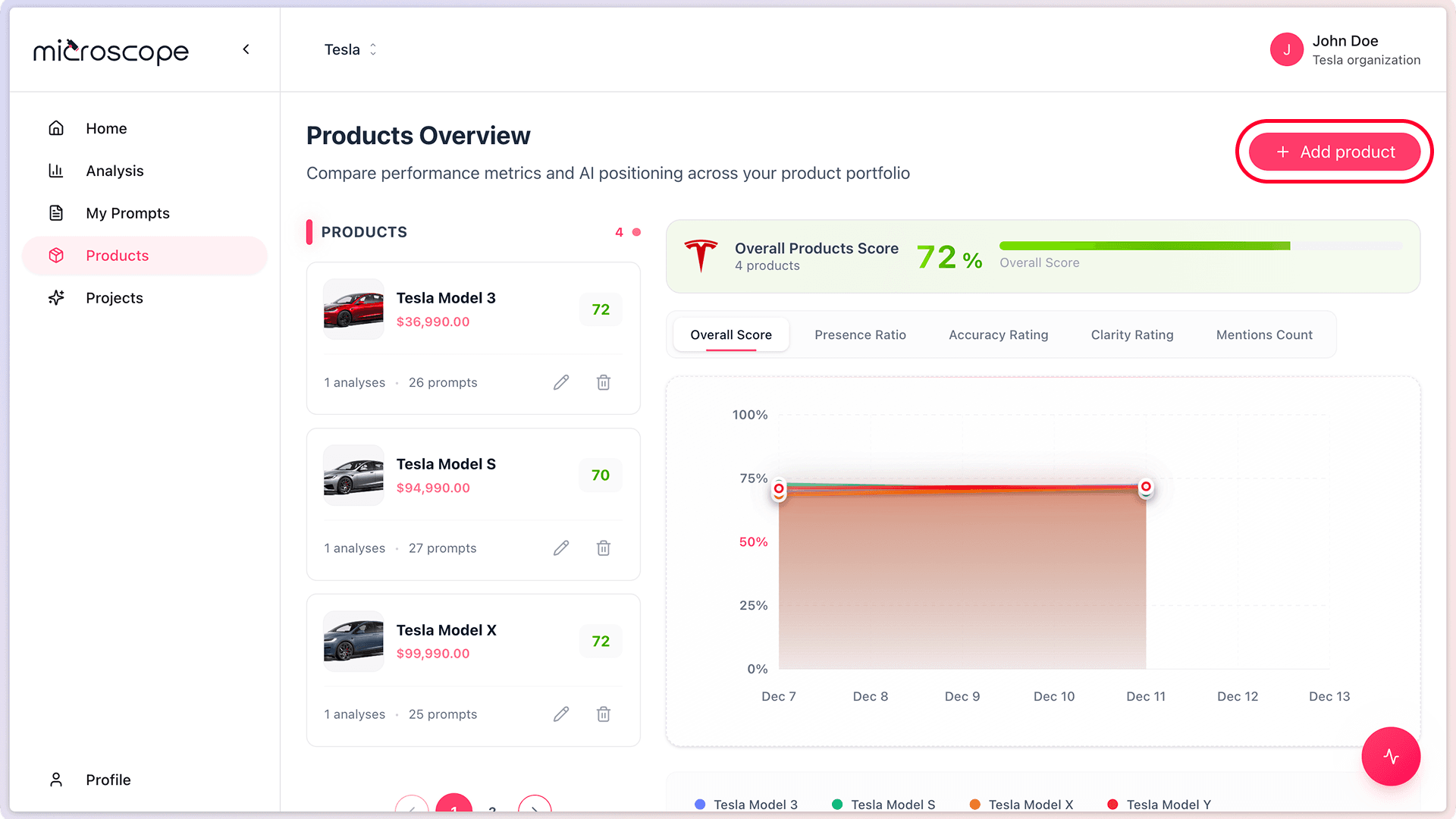
- Navigate to Products Overview from the left sidebar
Adding Your First Product
Step 1: Start the Add Product Flow
- On the Products Overview page, click the Add Product button
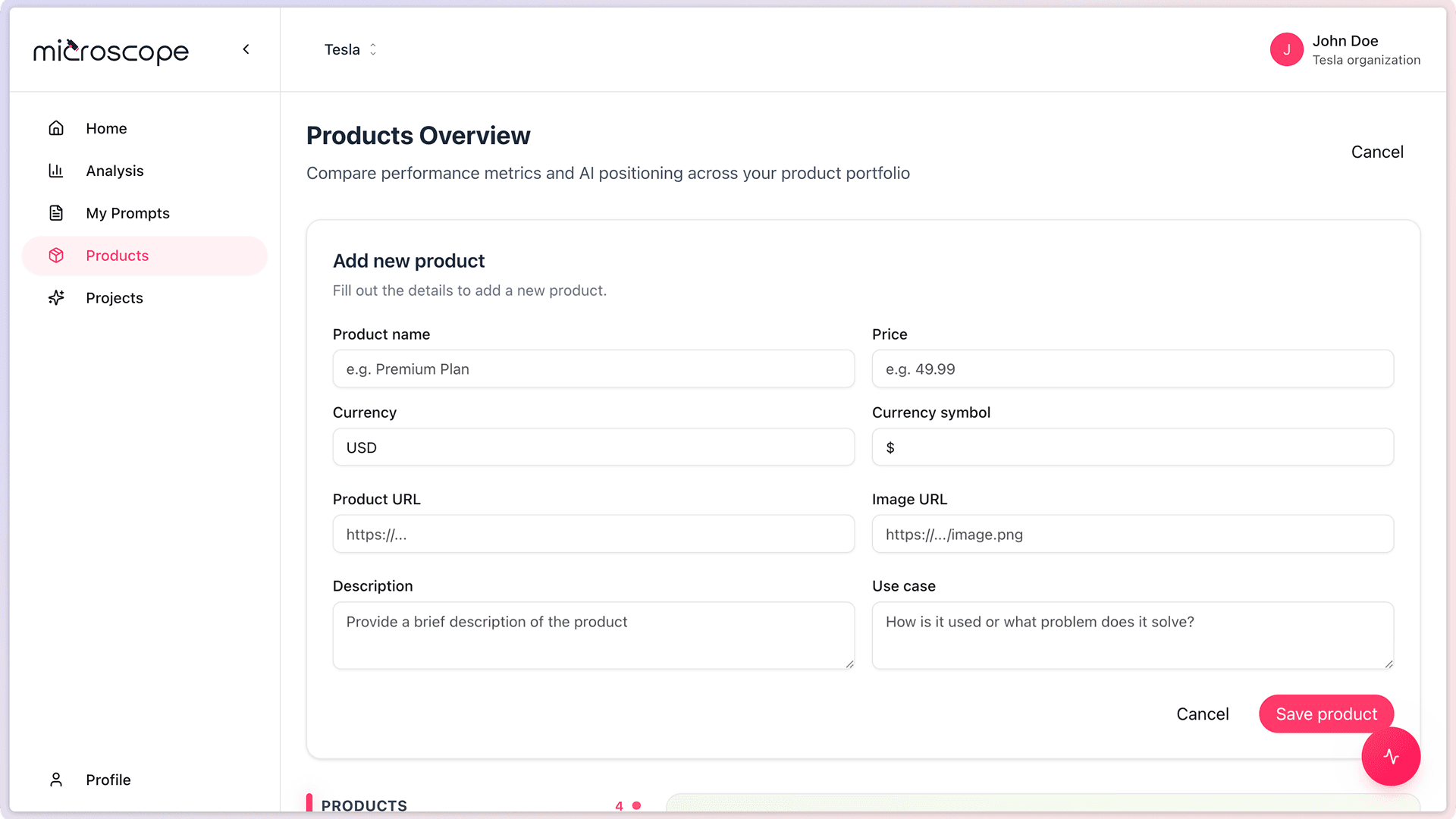
- The add product form will appear
Step 2: Enter Product Name
- Enter the official product name
- Use the name as it appears in your marketing materials
- Be consistent with how customers know the product
- Include any necessary branding (e.g., "Microsoft Surface Pro" not just "Surface")
Step 3: Write Product Description
Provide a clear, comprehensive description:
- Explain what the product is
- Describe its main features or benefits
- Include technical specifications if relevant
- Aim for 2-4 sentences
- Write for clarity, not marketing hype
Your product description helps Microscope.ai understand what accurate AI responses should include. Be specific and factual.
Step 4: Define Use Cases
Describe key scenarios where the product is used:
- Who uses this product?
- What problems does it solve?
- In what contexts is it most valuable?
- What are common customer applications?
Step 5: Add Pricing Information
Enter the product price and currency:
- Enter the current price
- Select the appropriate currency
- Use standard pricing (no promotional prices)
- Update this when prices change
Step 6: Provide Product URL
Add a direct link to the product page:
- Copy the full URL from your website
- Ensure the link goes directly to this product
- Verify the link is publicly accessible
- Use the canonical URL if you have multiple versions
Step 7: Add Image URL
Include a link to the product image:
- Use a high-quality product image
- Ensure the image URL is publicly accessible
- Prefer images hosted on your domain
- Use a consistent image size/format across products
Step 8: Save the Product
- Review all entered information for accuracy
- Click Save or Add Product
- The product will be added to your catalog
- You'll return to the Products Overview page
Adding Multiple Products
One at a Time
To add several products:
- Add the first product following the steps above
- Return to the Products Overview page
- Click Add Product again
- Enter information for the next product
- Repeat until all products are added
Prioritize Important Products
If you have many products and limited plan capacity:
- Start with your flagship or best-selling products
- Add products most frequently asked about by customers
- Include products facing competitive pressure
- Add niche products later as needed
Best Practices for Product Information
Product Names
- Use official, trademarked names
- Include version numbers if relevant (e.g., "iPhone 15 Pro")
- Be consistent with your website and marketing
- Avoid abbreviations unless that's the official name
Descriptions
- Be accurate and factual
- Focus on what the product does, not just marketing claims
- Include key differentiators
- Use language your customers would use
- Keep it concise but comprehensive
Use Cases
- Provide specific, realistic scenarios
- Include 2-4 primary use cases
- Think about why customers choose this product
- Consider different customer segments
- Be concrete, not generic
Pricing
- Keep prices current
- Use standard prices, not promotional pricing
- Be consistent with your website
- Update when prices change
URLs
- Verify all URLs are publicly accessible
- Use HTTPS links when possible
- Ensure product URLs go directly to the product page
- Check that image URLs display correctly
- Use stable URLs that won't change frequently
Common Mistakes to Avoid
Incomplete Information
Don't leave fields empty or provide minimal information. Comprehensive product data leads to better AI monitoring.
Marketing Language Only
While it's fine to be positive, focus on facts over hype. AI models respond better to concrete information.
Inconsistent Naming
Use the exact same product names across your website, marketing, and Microscope.ai. Inconsistency confuses AI models.
Too Generic
Vague descriptions like "our best product" don't help. Be specific about what makes each product unique.
After Adding Products
Verify Your Catalog
- Review the Products Overview page
- Confirm all products are listed
- Check that information is accurate
- Make edits if needed
Test with Product Prompts
- Create an analysis using product prompts
- Run a test execution
- Review how AI models describe your products
- Adjust product information if responses are inaccurate
What Happens After You Add Products?
Once products are in your catalog:
- They become available for product-specific prompts
- You can run analyses targeting specific products
- The Products Overview page shows performance metrics
- You can compare product performance
- Product information is included in AI prompt context
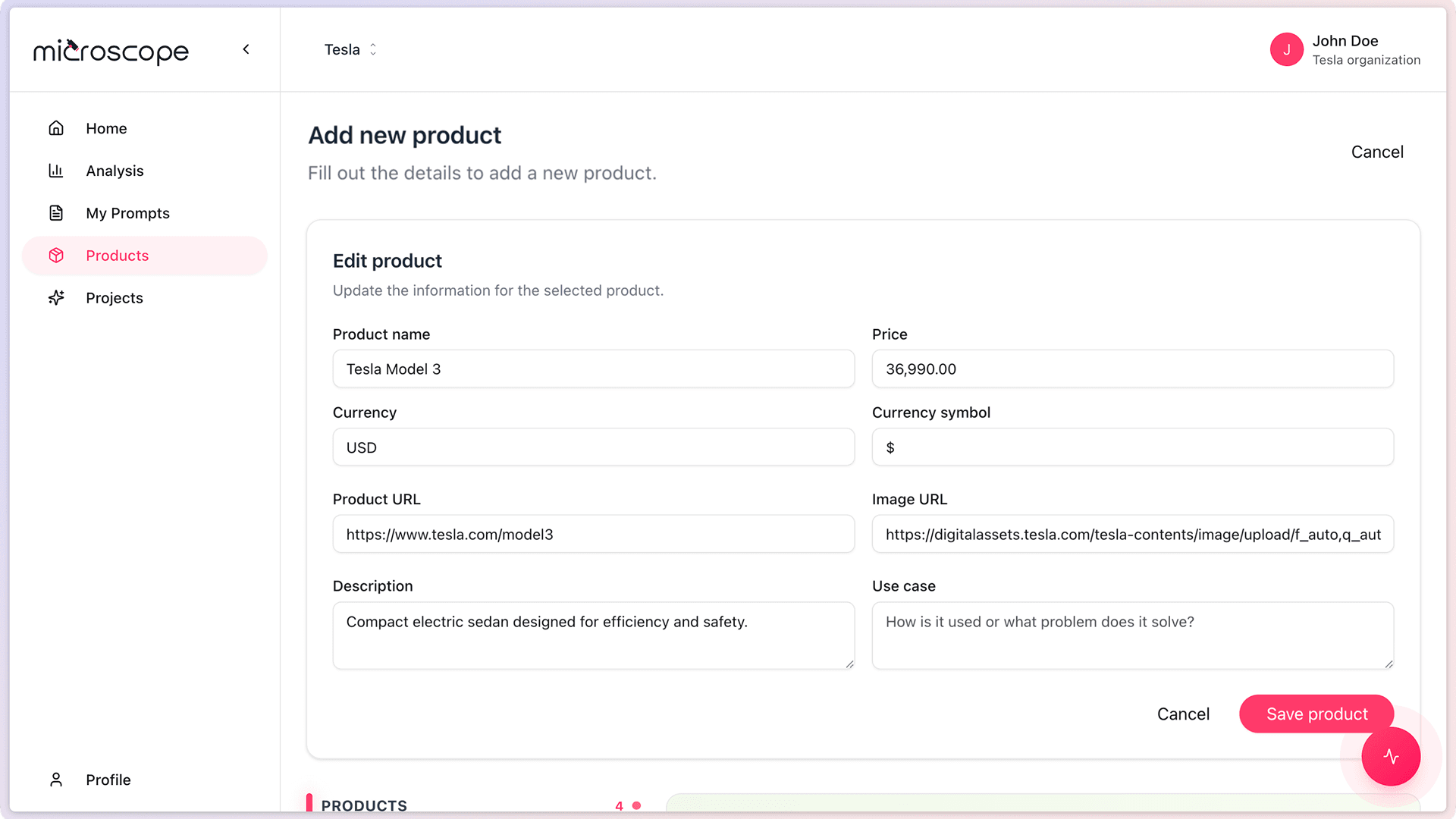
Editing Products Later
You can always edit product information:
- Navigate to Products Overview
- Find the product to edit
- Click edit or select the product
- Update information as needed
- Save changes
Updates take effect immediately and are used in future analyses.
When to Add More Products
- When launching new products
- When expanding into new categories
- When rebranding or updating existing products
- When products become strategic priorities
- When you upgrade your plan and gain capacity
Next Steps
With products added to your catalog, you're ready to:
- Run product-specific analyses
- Track product performance over time
- Compare AI positioning across products
- Optimize product information based on AI responses